
Practical Guide to Safe Exclusion Rules for Product Recommendations
How to safely exclude out-of-stock items, gift cards, and low-price noise products from Shopify recommendations without breaking conversion tracking, upsell measurement, or AB tests.
Lead: The right way to design exclusion rules is “minimal + review”
Excluding products from recommendations is not about “deleting annoying items.” It is about “tuning the system to reduce noise while protecting revenue.” If you overdo it, you can break CVR and upsell measurement, and even damage model performance.
Start by prioritizing just these three for exclusion.
- Out-of-stock or stopped products
- Special products that distort cart value, such as gift cards
- Low-priced or noise products
This playbook lays out, as concrete steps, how to build exclusion rules you can add to a Shopify store today, and what to watch out for so you do not break your tracking.
Ground rules: What you may safely exclude, and what you should not over-exclude
- Out-of-stock or discontinued products:
- If customers cannot buy them, you can safely exclude them from recommendations in principle.
- However, intentionally promoted cases like “pre-order” or “restock coming soon” should be handled as exceptions. - Special products such as gift cards or multi-use tickets:
- They tend to distort AOV and items-per-order metrics, so it is generally safer to exclude them from standard recommendation blocks.
- Ideally, you surface them only in dedicated contexts such as gift-focused landing pages. - Low-priced or noise products (100-yen samples, replacement parts, etc.):
- Even if they occupy recommendation slots, the revenue impact is small and click-through rate often drops.
- It is easier to manage them by excluding a certain price band or entire collections. - Items where you must be careful not to over-exclude:
- If you try to narrow everything down to top sellers and end up excluding many in-stock related products:
- You run out of recommendation candidates and the same items keep showing up
- AB tests lose variation between patterns and become invalid
- Keep exclusion rules “simple and few” wherever possible.
Approach:
- First exclude only things you are absolutely sure you never want to show
- Conditions with unclear impact (specific brands, specific tags, etc.) should be considered later based on data
- After adding exclusions, always review metrics from the next day through the first week
Step-by-step: Flow for excluding out-of-stock items, gift cards, and noise products
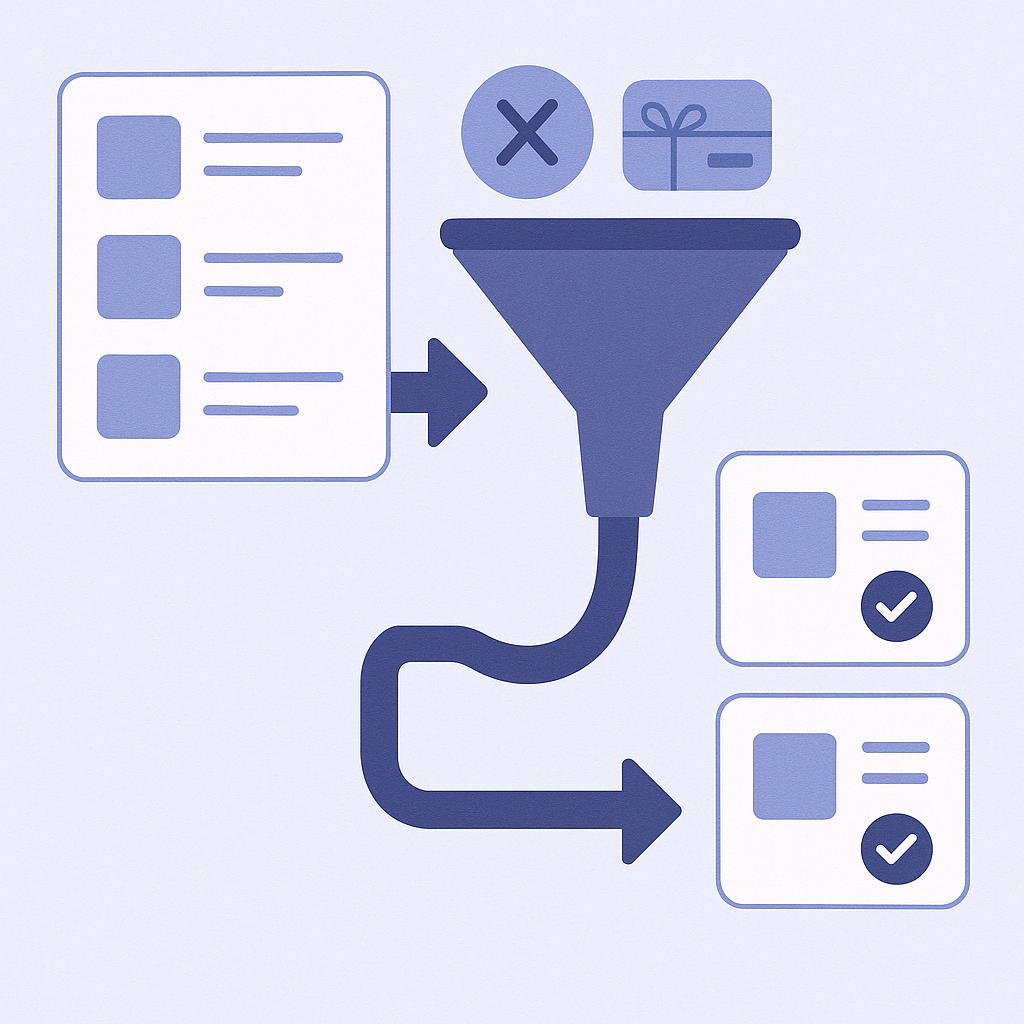
- Use Shopify admin → Products to inventory what you want to exclude
- In the Products screen, use Filters to:
- Filter by Inventory status = Out of stock
- Search for store-specific noise terms like “gift card,” “ticket,” “sample”
- Write down the shared attributes of your exclusion candidates (price range, product type, tags, collections). - Add dedicated tags to gift cards and noise products
- Go to Products → open each target product and add tags such as exclude-recommend or giftcard.
- Document an operational rule that the same tags must be added to any similar products created in future (update your ops manual or product setup checklist). - Decide your conditions for out-of-stock or discontinued products
- Decide whether to exclude “as soon as inventory hits zero” or only if “there have been no sales for a certain period.”
- If you want to start simple, it is safest to begin with a rule that excludes variants whose inventory is zero. - Open the exclusion (rules) screen in your recommendation app
- In your current recommendation app, open the screen for Rules, Display rules, or similar.
- Typical conditions you will combine are:
- Exclude products that contain specific tags
- Exclude products priced below XX yen
- Exclude products with inventory quantity 0 - Add exclusion rules based on tags
- In the rule creation screen, choose Product tag as the condition.
- Configure something like “Exclude products whose tags include exclude-recommend.”
- If you use a separate tag for gift cards, also add “Exclude products whose tags include giftcard.” - Add exclusion rules for low-priced products by price
- In the same rule creation screen, choose Price as the condition.
- Configure “Exclude products whose selling price is below XX yen.”
- At first, use your revenue mix to pick a conservative threshold (for example, anything cheaper than your shipping fee). - Add exclusion rules for out-of-stock products
- Choose Inventory quantity or Inventory status as the condition.
- Configure “Exclude products with inventory quantity 0” or “Exclude products with inventory status = Out of stock.”
- If you have pre-order items or products you heavily promote on restock, tag them separately (for example, recommend-keep) and then:
- Exclude “inventory 0,”
- But add an exception: “Do not exclude products whose tags include recommend-keep.” - Verify display in a test environment or limited-access page
- If you have a staging theme or a password-protected test page:
- Place a recommendation block on that page
- Check that products with exclusion tags or below the excluded price band do not appear
- If you have no test environment, temporarily add a recommendation block to a non-public collection in your live theme and verify internally. - For the first week after launch, monitor revenue and CTR from recommendations
- In your recommendation app’s reports, compare before vs after (ideally week over week) for:
- Impressions
- Click-through rate
- Revenue attributed to recommendations
- If any area drops sharply, revisit your low-price threshold or target tags, relax one rule at a time, and re-measure.
Placement and rule design tips: Decide “what you want to show” per block before excluding
It is tempting to set one global exclusion rule for the entire site and call it done, but the best exclusion conditions differ by the placement of each recommendation block.
- On product pages, “Customers who viewed this item also viewed” should prioritize similar in-stock items
- Goal: Give undecided shoppers better-fitting alternatives.
- Here you can safely be strict about excluding out-of-stock items, gift cards, and noise products. - On the cart page, “Frequently bought together” should keep add-on products
- Goal: Drive bundle purchases and upsells.
- Even low-priced products that are genuinely helpful as add-ons (for example, accessories, replacement filters) are often better left in.
- To achieve this:
- Soften global “exclude below XX yen” rules
- Prioritize excluding products with noise tags instead
and adjust the balance per block. - On the homepage or collection-bottom recommendations, tune for new visitors
- Goal: Quickly communicate the overall appeal of the store.
- Exclude out-of-stock items and gift cards, but leave some low-priced products to showcase the breadth of your price range. - For each block, separate “absolutely not” from “prefer to exclude”
- Absolutely not: Out-of-stock or discontinued products, gift cards (in standard contexts)
- Prefer to exclude: Low-priced, low-value noise products
- If your app lets you configure rules per widget:
- Apply “absolutely not” conditions globally to all blocks
- Fine-tune the “prefer to exclude” conditions by block
This design keeps negative impact on measurement in check.
Common pitfalls and checkpoints to avoid breaking your tracking
- Failure pattern 1: Too many conditions, not enough candidates
- If you stack exclusion conditions for brand, collection, tag, price, inventory, and more, you can end up with almost no candidates.
- Symptoms: The same items appear over and over, recommendation blocks go blank, CTR suddenly drops.
- Countermeasures:
- Toggle rules on and off one by one and observe impact
- Start from just two or three clearly justified conditions such as “exclude tagged items” and “exclude inventory 0.” - Failure pattern 2: Changing rules mid AB test
- If you change exclusion conditions in the middle of a test, you end up comparing different conditions across the first and second halves and cannot interpret the result.
- Countermeasures:
- Keep exclusion rules fixed during any AB test
- If changes are unavoidable, pause the test and evaluate results separately for “before changes” and “after changes.” - Failure pattern 3: Evaluating recommendations with gift cards still included
- A single strong spike in gift card sales can send your average order value and recommendation-attributed revenue through the roof.
- This is sometimes misread as “our recommendations improved,” leading to wrong decisions.
- Countermeasures:
- As a rule, exclude gift cards from recommendations
- If you must surface them, create dedicated blocks or pages just for gift cards. - Checkpoint: Metrics you must watch after adding exclusion rules
- Impressions of recommendation blocks: Are they dropping due to lack of candidates?
- Click-through rate (CTR): Is it improving after noise removal?
- Revenue share from recommendations: Has it fallen sharply?
- Track these over one week to one month, and if no issues appear, move on to the next round of tuning.
Next steps with RecoBoost: Turn exclusion tags and stock rules into templates
If you use RecoBoost, you can turn the content of this article almost directly into reusable templates.
- Open Shopify admin → Apps → RecoBoost
- From the left menu, open Recommendation settings. - Use global exclusion rules to remove gift cards and noise
- In Global rules or each widget’s Display rules, add:
- Exclude products whose tags include exclude-recommend
- Exclude products whose tags include giftcard - Turn on exclusion for out-of-stock products
- In the same screen, set Inventory conditions to Show only in-stock items.
- If you have pre-orders or other items that must remain visible, add a tag such as recommend-keep and then configure:
- Exclude inventory 0
- But do not exclude products whose tags include recommend-keep. - Toggle “low-price exclusion” per widget
- From Widget management you can, for example:
- Exclude products below XX yen on product page widgets
- Soften or remove price-based exclusions on cart widgets
to fine-tune behavior by placement. - Use the Reports screen to compare metrics before vs after exclusion
- In Reports, review impressions, CTR, and revenue per widget.
- Compare time ranges before and after each exclusion change, and if there are no issues, lock in the rules and move on to the next improvements such as changing recommendation logic.