
Practical checklist for combining bundle discounts and free shipping bars
A practical checklist to safely combine bundle discounts and cart free‑shipping bars in your Shopify store, avoiding double discounts and threshold mismatches.
Conclusion: start by deciding the threshold amount and discount order
The biggest pitfall when you combine bundle discounts with a cart free shipping bar is starting without a clear rule for which amount you are using as the basis. Decide the following two items first, then configure your settings. That alone will prevent a lot of issues.
- Free shipping threshold: for example, free shipping for orders of 5,000 yen or more including tax
- Bundle design policy: for example, three items for 10% off so the total lands “just above” the free shipping line
Once these two are fixed, build a cart flow where customers can create a bundle and then immediately see how much more they need to spend to get free shipping. That makes it much easier to lift AOV. The rest of this article整理 the groundwork and steps for doing that.
Groundwork: write down which amounts you will use as the basis
Grab a calculator and some paper, and decide these three things in advance. If you skip this and jump straight into setup, it will be hard to judge during testing what the “correct” behavior actually is.
- Free shipping reference amount: will you check eligibility based on the order amount before discounts or after discounts
- Bundle discount type: fixed amount off or percentage off, and whether you use Shopify’s built-in Discounts or an app
- Stacking rules: can the bundle discount be combined with other coupons, or must customers choose one or the other
If possible, write this out in a single sentence before you start configuring. It will make the process smoother.
- Example: “Orders of 5,000 yen or more including tax before discounts get free shipping. Bundles of three items get 10% off. Bundles and other coupons cannot be combined.”
Once this is decided, move on in this order: set up the bundle, then the free shipping bar, then testing.
Step-by-step: 7 steps to configure bundles and the free shipping bar
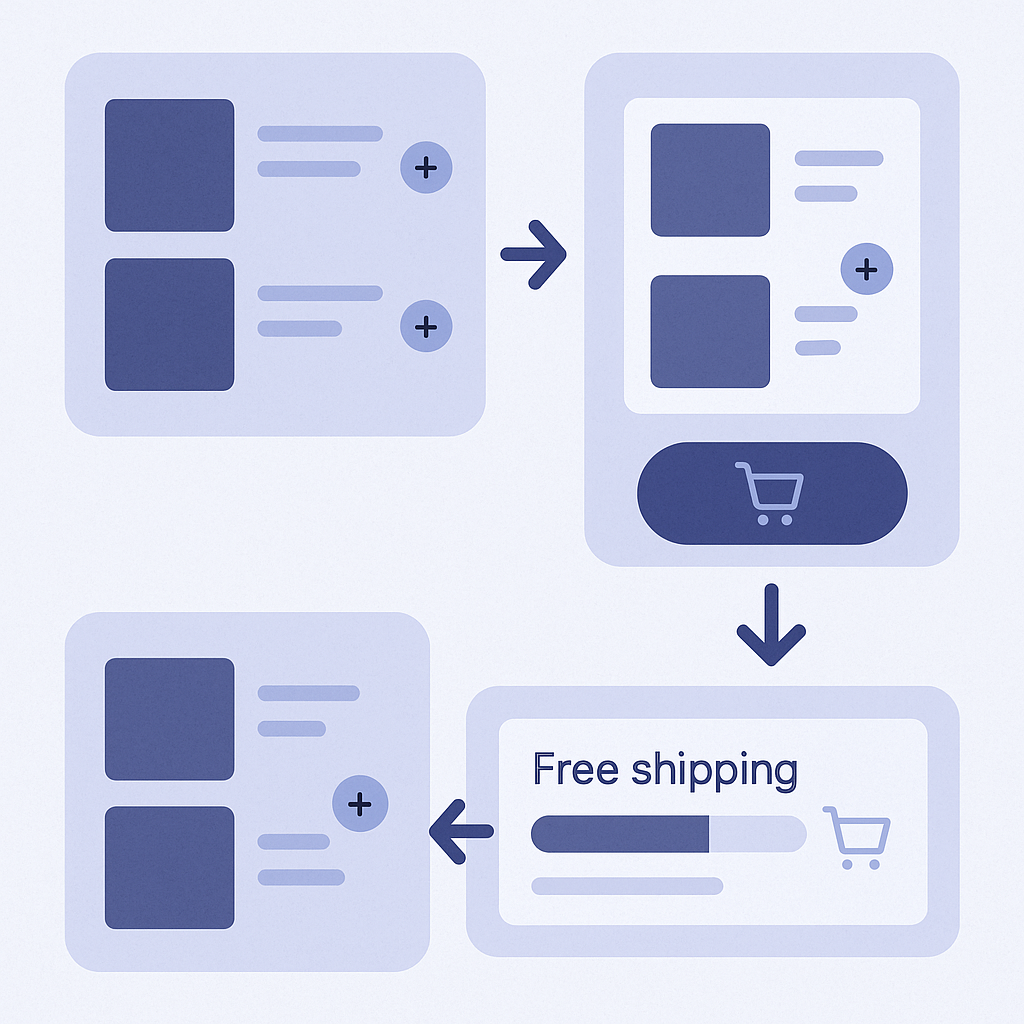
- 1. Organize eligible products in the Shopify admin
- In the Shopify admin, go to Products and tag the items you want to include in bundles (for example, bundle-a)
- Tag products you want to exclude from bundles (bulky items, preorders, etc.) with a separate tag so you can easily filter them out later - 2. Create the bundle discount
- In the Shopify admin, go to Discounts and click Create discount
- For the discount type, choose Bundles or Automatic discounts on orders if your plan does not include Bundles
- Under Discount type, choose Percentage or Fixed amount
- Under Eligible items, use the tag you just created (for example, bundle-a) so only specific product sets are discounted
- Design conditions such as minimum quantity so that customers naturally approach the free shipping line (for example, unit price 1,800 yen × 3 items ≈ 5,400 yen)
- If there is a setting for combining with other discounts, making them non-stackable by default will reduce trouble - 3. Check and configure your free shipping shipping rules
- In the Shopify admin, go to Settings → Shipping and delivery
- In the relevant shipping profile, click Manage rates
- Check whether there is already a conditional free shipping rate; if not, click Add rate to create one
- Set the Rate type to Based on order price and configure it to match your rule, such as 0 yen for orders of 5,000 yen or more
- At this stage you cannot specify “before or after discounts”, so proceed assuming you will confirm the behavior in tests later - 4. Install and configure a free shipping bar app
- Open your free shipping bar app (for example, Free Shipping Bar)
- If you can limit its placement, set it to display only on the cart page and/or drawer cart first
- Enter the same free shipping threshold amount you set in shipping (for example, 5,000 yen)
- If the app lets you choose whether to base it on the subtotal before or after discounts, match it to the policy you decided in advance
- Prepare at least two messages: one for “You are X yen away from free shipping” and one for “This order qualifies for free shipping” - 5. Test bundles and the free shipping bar together on both desktop and mobile
- On the storefront, add just one eligible product to the cart and check how the free shipping bar displays in the cart
- Then add exactly the bundle condition quantity (for example, three items) and confirm that the bundle discount applies correctly
- In that state, check whether the free shipping bar shows that the threshold has been reached and that a free shipping method is available
- Test on both desktop and smartphone, and also check that nothing breaks visually - 6. Check for discrepancies between pre- and post-discount amounts
- Add bundle products to the cart and intentionally fine-tune the total so it sits right on the edge of the free shipping line
- On the screen just before you move into Orders in the admin, note down the breakdown of Subtotal, Discount, and Shipping
- On the shipping step, check whether free shipping has been applied and whether its behavior matches the message on the free shipping bar
- If there is a mismatch, tweak either the threshold used by the free shipping bar or the bundle conditions - 7. Do a final check with a checklist before going live
Before going live, make sure you check at least these four items:
- When you build a cart using only bundle-eligible products, does the discount rate match your expectations
- When the cart total is slightly above the free shipping line, does it always qualify for free shipping
- Does the wording on the free shipping bar contradict the actual shipping settings in any way
- When a coupon code is used together, are you accidentally allowing unintended double discounts
Placement tips: put it where the customer’s next move is obvious
Bundle discounts and free shipping bars perform very differently depending on where and in what order they are shown. Keeping the following points in mind will help customers move forward without getting stuck.
- Group everything around the cart
- Place bundle suggestions (multi-buy prompts) and the free shipping bar on the same screen wherever possible, either on the cart page or in the drawer cart
- If you only show bundle suggestions on product pages, customers will not have a clear view of their final total after adding items to the cart - Keep the “add one more item” path close by
- Near the free shipping bar, show recommended products or frequently bought together items so customers can add to cart without thinking too hard
- Prioritize products whose prices are close to the “X yen to free shipping” gap; they are more likely to get clicks - Keep the messaging simple
- Showing “10% off bundles”, “free shipping over 5,000 yen”, and “extra 10% off with coupon” all on the same screen will confuse customers
- Limit each screen to a single “main discount”, and move the detailed rules to a separate explainer page you link to so the cart stays clean
Common pitfalls and how to prevent them in advance
- Failure 1: the free shipping bar threshold does not match the actual shipping rules
- Cause: you changed your shipping settings but did not update the free shipping bar threshold
- Fix: set an operating rule that whenever you change shipping rates, you must review the free shipping bar app threshold at the same time - Failure 2: double discounts from bundles plus coupons
- Cause: the bundle discount is set as an automatic discount while customers are also free to enter coupon codes
- Fix: set high-value coupons to not combine with other automatic discounts, or restrict them to products that are not eligible for bundles - Failure 3: you want to exclude certain products from counting toward the free shipping threshold
- Cause: you do not want to apply the standard free shipping rule to bulky items or some consignment products
- Fix: split your shipping profiles and design different free shipping rules for each product group. On top of that, add minimal notes like “some items excluded” to the wording on your free shipping bar - Failure 4: the bar or bundle section breaks in the mobile drawer cart
- Cause: conflicts with your theme or other apps change the cart layout from what you expected
- Fix: right after configuration, run real-device tests on both iPhone and Android. If the layout breaks, adjust the app’s position settings or the order of theme sections
With RecoBoost, you can automatically suggest that “one more item” in the cart
- Go to Apps → RecoBoost and open the recommendation settings
- In the widget for the cart page, select AI similar products or Frequently bought together as the recommendation logic
- In the Display conditions, prioritize showing this widget when the cart total is just below the free shipping threshold
Configured this way, RecoBoost’s AI will automatically surface products in just the right price range right next to your “X yen to free shipping” bar.