
How to Add Product Recommendations to Email Flows
A practical guide to inserting product recommendations into Shopify abandoned checkout and winback flows. Learn which logic to use in each flow, where to place blocks in the email, common pitfalls, and how it all connects with RecoBoost.
Why you put recommendations into email flows, and the bottom line
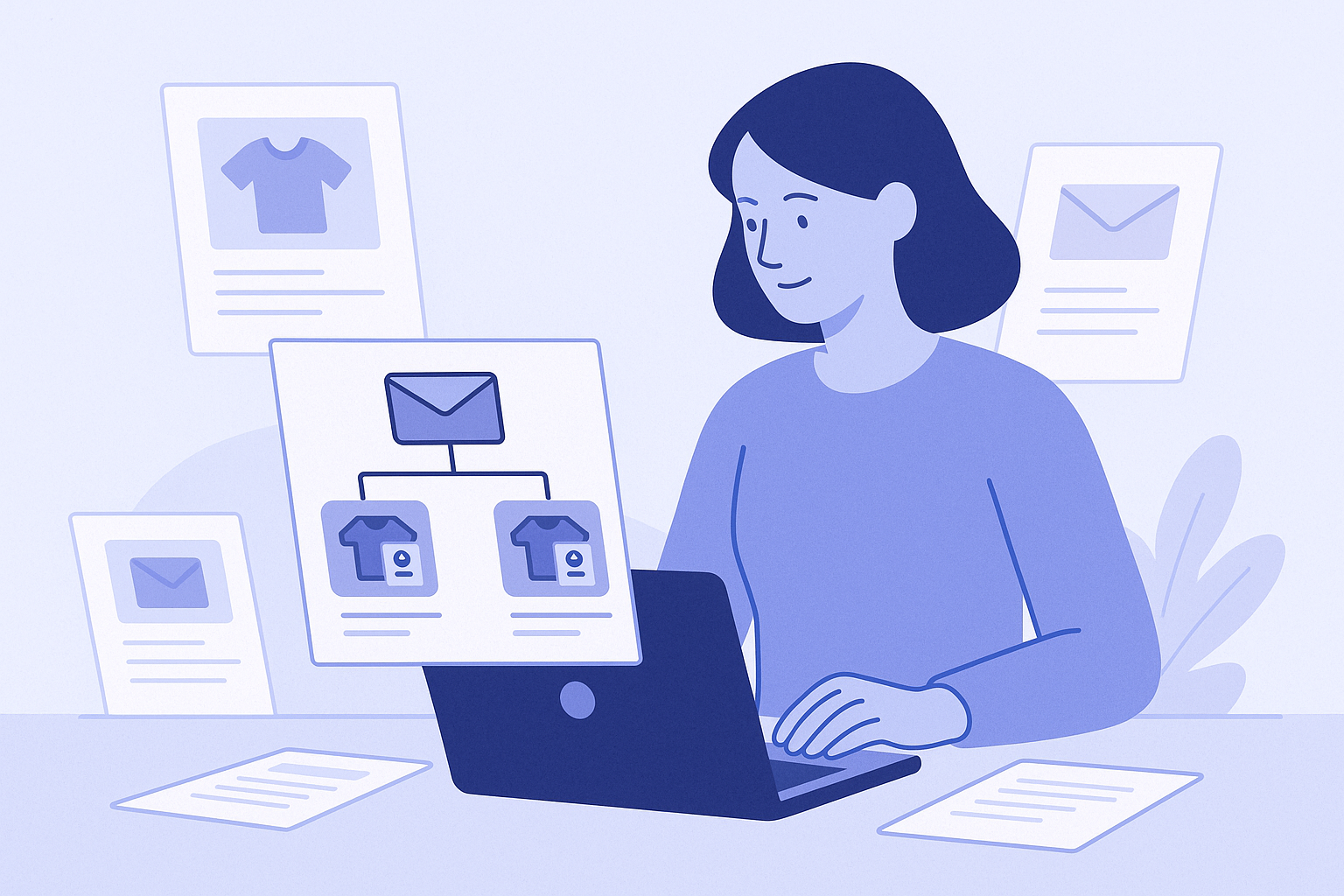
The point of adding recommendations into email flows is to use products the customer is interested in right now as the entry point, and bring abandoned-cart users or lapsed customers back to purchase in the shortest path. Abandoned cart and winback emails are especially strong use cases where recommendations tend to perform well.
In this playbook, the goal is to get to the following state by the end of today.
- In the first email of your abandoned checkout flow, insert “a reminder of the items left in the cart” plus “recommended similar items”.
- In your winback flow for dormant customers, insert recommendations based on “recent browsing behavior” or “best sellers by category”.
- Set things up so you can roughly track which links get clicked in which emails.
Before you start: which emails should get recommendations, and what kind
Do not try to cram recommendations into every single email from day one. Start with two flows that work especially well with recommendations.
- Abandoned checkout / cart flow
- Goal: bring customers back to the items they were considering
- Best-fitting recommendation: resurfaced cart items plus similar items for upsell and cross-sell - Winback / re-engagement flow
- Goal: give customers who have not bought recently a reason to return
- Best-fitting recommendation: products related to past purchases, or best sellers by category
In this playbook we assume you are using common Shopify email tools such as Shopify Email, Klaviyo, or Omnisend, and that you will “embed RecoBoost recommendations into an HTML block.” The exact UI labels differ by tool, but the logic of the setup is essentially the same.
Step-by-step: inserting recommendations into abandoned cart and winback emails
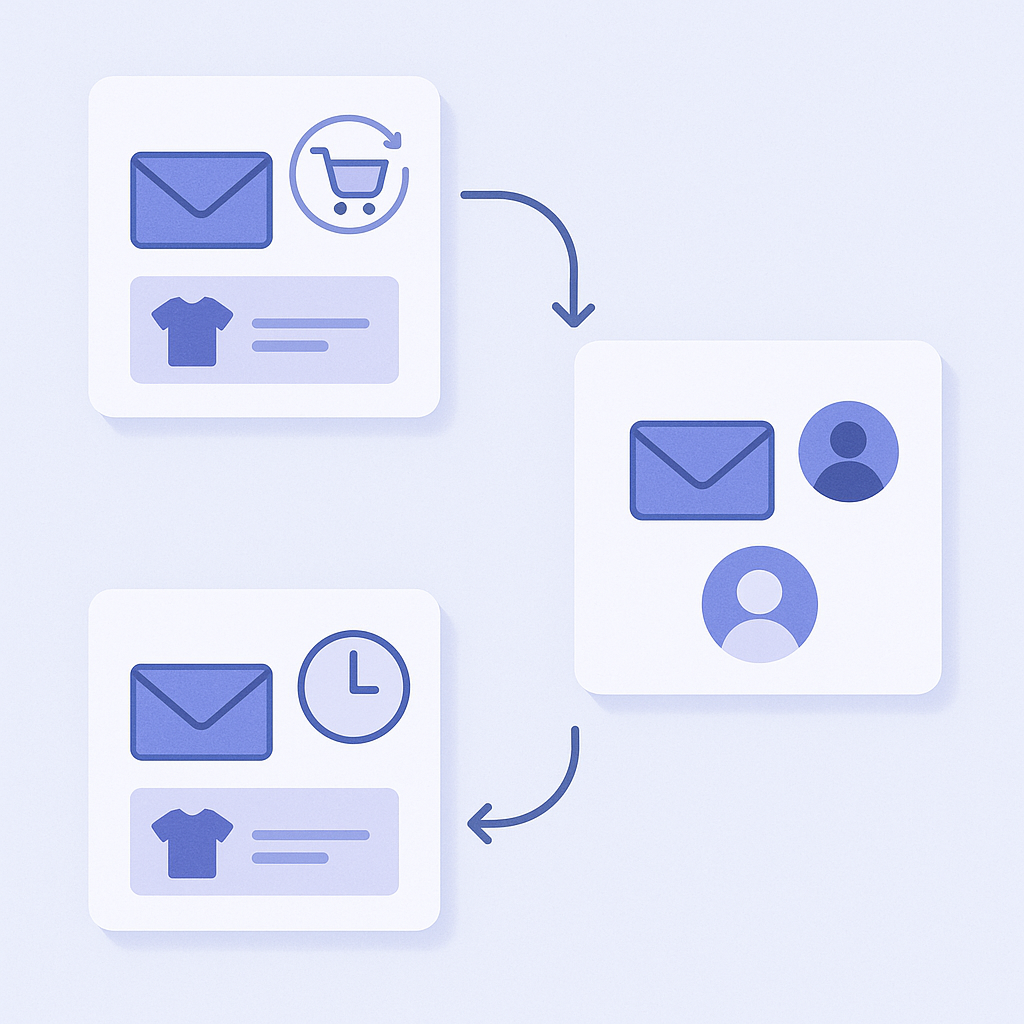
- Check the target flows (abandoned cart and winback) in your email app
- From Apps in your Shopify admin, open the email app you normally use, such as Shopify Email or Klaviyo.
- From the menu, open the screen for Flow, Automation, or Flows and check whether you already have an abandoned cart flow and a winback flow.
- If you do not have them yet, create a new flow from a template such as Abandoned Checkout or Winback / Re-engagement. - Edit the template for the first email in the abandoned cart flow
- From the list of flows, select the one that corresponds to Abandoned Checkout or Cart and open Edit on the first email action.
- In the body area, place your cursor where you want to insert the product block, typically around the middle of the body down to just above the footer.
- If there is already an automatic “items in cart” block, keep it and secure space right below it for the recommendation block. - Insert a dedicated recommendation block (HTML or custom code)
- In the email editor sidebar, choose Add block.
- From the list of blocks, select the one labeled HTML or Custom code and drag and drop it to the position you just chose.
- Do not paste any code yet. For now you are only deciding “this is where the recommendations will go.” - Prepare to create an email recommendation widget in RecoBoost
- From Apps in your Shopify admin, open RecoBoost.
- In the side menu, open Recommendation settings and click Create new widget.
- For widget type, choose the option for email, or the one intended for embed.
- For recommendation logic, pick one suited to abandoned-cart users, such as AI similar items for abandoned carts or a browsing history–based logic. - Roughly define the content and design in RecoBoost
- In the item count settings, adjust the number of items shown to around three to four products. More than that will make the email feel too long.
- For layout, choose something close to three columns per row, with a structure that clearly shows the thumbnail image, product name, and price.
- Confirm that the click destination URL is set to the product detail page. - Get the email embed code from RecoBoost
- Open the details screen for the email widget you just created and click the Embed code tab.
- Copy all of the HTML code intended for email. This should be HTML-based, not JavaScript. - Paste the code into the HTML block of your email template
- Go back to your email app and edit the HTML or Custom code block you placed earlier.
- Delete any existing content and paste the email HTML code you copied from RecoBoost as is.
- Use the preview or Send test feature to verify that the recommendation block appears in the intended position. - Create a separate recommendation block with different logic for the winback flow
- In your email app, open the first email template in your winback or re-engagement flow.
- Just as you did for abandoned cart, add an HTML or Custom code block around the middle of the body.
- In RecoBoost, go to Recommendation settings, create a new widget, and choose logic such as recommendations based on past purchases or best sellers by category.
- Copy the embed code for this winback widget and paste it into the HTML or Custom code block in the winback email. - Use test sends to roughly check where people are likely to click
- From Send test in your email app, send the email to your own address.
- Open it on both desktop and mobile and check:
- Whether the recommendation block wraps awkwardly across lines
- Whether buttons and links are large enough to tap
- Whether the primary CTA, such as a Return to cart button, is not buried under the recommendations - After launch, focus on click rate rather than open rate for the first one to two weeks
- Turn on the flows and let them run for at least one to two weeks.
- In the Reports or Analytics section of your email app, check the click-through rate for emails that include recommendations.
- If click-through rate is extremely low, first review whether product images are too small or the block is buried too far down in the email.
Where to place recommendations: layout tips
- In abandoned cart emails, place them directly under the cart items
- Do not start with recommendations for other products. First, show the items left in the cart at the very top.
- Then insert a single similar-items recommendation block directly under that to prompt “this also looks good” comparison behavior.
- If you are using coupons or discount information, place those above the recommendations in the first half of the body and let recommendations act as additional options. - In winback emails, place them after the greeting and offer
- Start with a short greeting such as “It has been a while” or “It has been X days since your last visit” and, if applicable, mention any discount or free shipping offer.
- Directly under that, add a heading like “Here are some recent best sellers” or “Recommended based on your last purchase,” and place the recommendation block there.
- Do not just show image and price. Add even a single line of copy such as “Recommended if you…” to make it easier for lapsed customers to take action. - Limit recommendations to one block per email
- When you add recommendations into abandoned cart emails, keep the recommendation block to one location.
- If you pile on multiple blocks such as cart items, recommendations, rankings, and new arrivals, people will not know what to focus on and click-through rate will drop.
- When in doubt, stick to a single type per flow: similar items for abandoned cart, and either popular items or purchase-history-based items for winback. - On mobile, keep them within two to three screens of scrolling
- If the recommendation block ends up four or five screens below the top on mobile, many recipients will never reach it.
- As a rule of thumb, adjust your text so recommendations appear within two to three screens of the top of the body.
- Avoid filling almost the entire first screen with recommendations as well. Balance them with your main CTA button.
Common mistakes with email recommendations and how to prevent them
- Only recommendations get clicks and users never return to the original product
- This happens a lot in abandoned cart emails.
- How to prevent it:
- Place the Return to cart button above the recommendations and make its design stand out more than other buttons
- In the recommendation copy, clearly state that they are additional options, for example “These are also popular (use them for comparison).” - Out-of-stock products show up in recommendations
- Depending on the recommendation logic, high-selling products that are out of stock can slip into the candidates.
- How to prevent it:
- In RecoBoost, enable the stock filter or Show only in-stock items option
- For products with long procurement cycles, use stricter stock filters specifically for email widgets - Inconsistent image sizes or line counts break the email layout
- Some brands use product images with inconsistent aspect ratios.
- How to prevent it:
- In RecoBoost, enable any setting that fixes image aspect ratio, for example forcing a square ratio
- In your email editor, use the Image style settings to specify maximum width and height so images do not become overly tall or wide - Effect measurement ends at a vague “seems okay”
- A common pattern is to drop recommendations in once and then never analyze or improve them.
- How to prevent it:
- First, look at click-through rate: is there a difference between emails with and without recommendations?
- If possible, roughly track revenue from recommendation clicks using link tags or UTM parameters in your email app
- Once added, let them run untouched for one to two weeks, then review and improve them on a fixed cycle
Next steps: growing email recommendations with RecoBoost
If you are using RecoBoost, a good first milestone is to follow this playbook and embed exactly one recommendation widget into each of the abandoned cart and winback flows.
- Use different recommendation logic for each flow
- In Recommendation settings, tailor the logic to the goal of each flow.
- For example:
- Abandoned cart: AI similar items or frequently bought together
- Winback: browsing-history-based recommendations or best sellers by category - Create design presets specifically for email
- In the widget editor, adjust image size and text length for email, then Save design or Save as preset so you can quickly reuse it in other flows. - Use analytics to track recommendation performance from email
- In the Reports or Analytics section of RecoBoost, check clicks and revenue contribution for email widgets.
- If click-through is low, try one change at a time, such as:
- Adjusting the logic, for example from similar items to popular items
- Tweaking the number of products shown, such as from three to four
and iterate improvements in two- to four-week cycles.
Start by adding a single, simple recommendation block to the first abandoned cart email and the first winback email. Then, as you collect click data, gradually tune the logic and design over time.