
How to Launch “Complete the Look” on Fashion PDPs Today
Step‑by‑step playbook for adding a “Complete the look” block to your fashion product pages. Start with best‑selling categories, combine Frequently Bought Together and Similar logic, and expand to non‑apparel like cosmetics and home goods without breaking your brand.
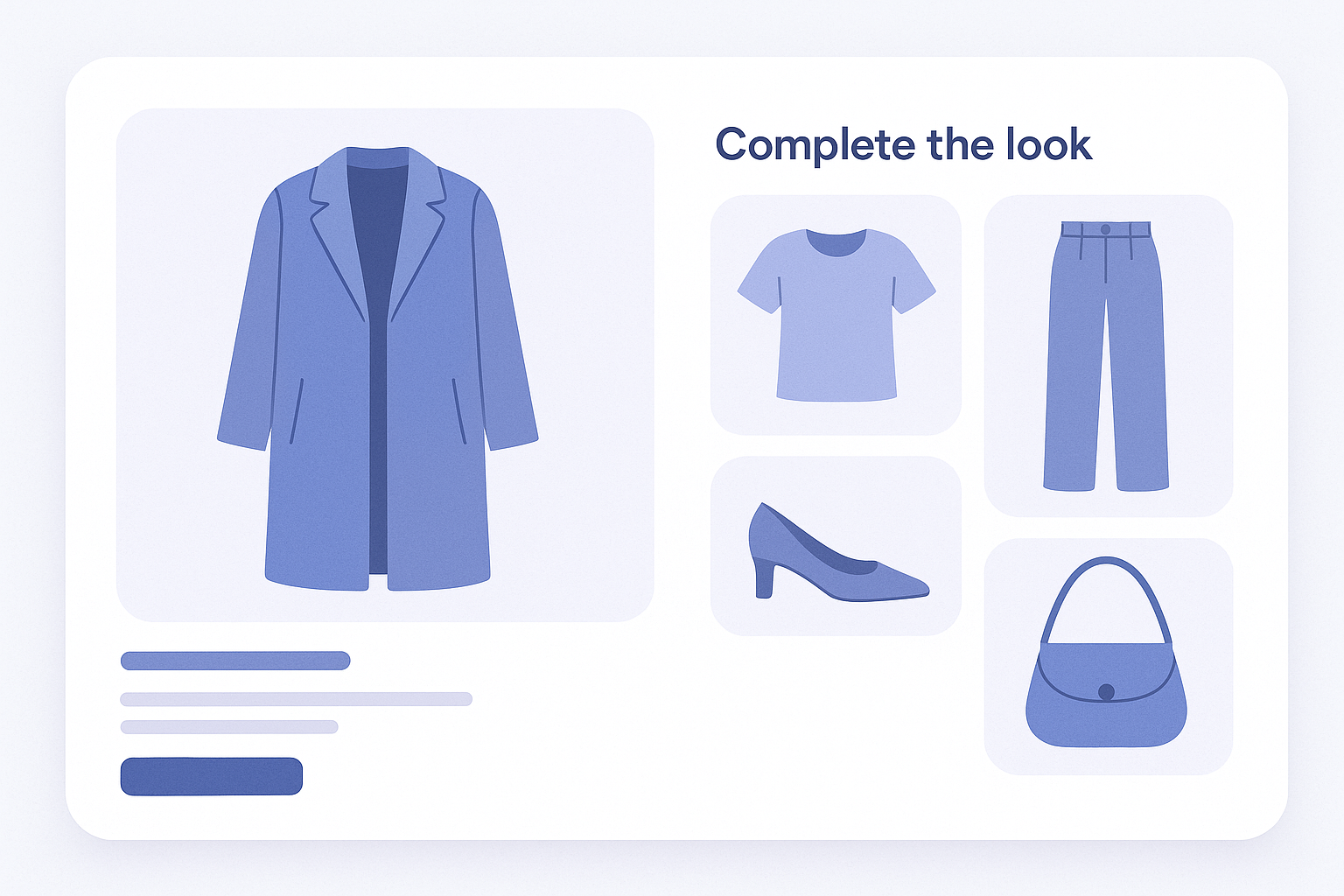
Goal: Create a “complete outfit” experience on the PDP
The goal of this playbook is to add a Complete the look block on your product detail pages (PDPs) so shoppers can add a full outfit—top, bottom, and accessories—to their cart from a single page.
As a first step, aim for the following setup:
- Placement: put the outfit suggestion block directly under the Add to cart button on the PDP
- Number of items: 2–4 items (for example, bottoms plus accessories when viewing a top)
- Logic: a combination of Frequently Bought Together plus Similar (style‑based) items
From there, expand in this order: best‑selling categories → other categories → non‑apparel.
Foundation: the 2 pillars of Complete the look (FBT and Similar)
Complete the look is essentially the design of which products you show together. In practice, you get stable results by combining the following two axes.
- Frequently Bought Together (FBT): combinations of products that are often added to cart or ordered together. In a physical store, this is the set of items that tend to show up at the register together.
- Strength: based on real purchase data, so it tends to connect directly to conversion
- Weakness: new products and low‑traffic products often lack enough data - Similar / Style‑based: a logic that surfaces products with similar design, color, price range, and so on.
- Strength: easy to use even for new products with little data, and it tends not to break your brand world
- Weakness: if you only line up color variations or near‑identical items, it becomes a “substitute suggestion” rather than a true “outfit suggestion”
For Complete the look it becomes much easier to design if you separate core items from coordinating items.
- Tops, dresses, and similar: core items (the item the shopper opened first)
- Bottoms, outerwear, bags, shoes, accessories, and similar: coordinating items (products that complement the core item)
The basic approach is as follows.
- For a core item, prioritize FBT so that proven combinations appear first
- When FBT data is thin, or the category does not naturally pair well, supplement with Similar logic to add items that play different roles within the same style
For example, for a white shirt as the core item:
- FBT: black tapered pants, loafers
- Similar: beige chinos and a leather bag in the same overall taste
This lets you present the full outfit, not just single items.
Steps: start with a single block in your best‑selling category
- 1. In the Shopify admin, check the target template (product page)
- Go to Shopify admin → Online store → Themes.
- Click Customize on your live theme, then use the template selector at the top to choose Products → Default product.
- Form a rough idea of where you will insert the outfit suggestion block; near the Add to cart button is the default. - 2. Choose one “core category” where you will add outfit suggestions
- Examples: within Women’s, pick Tops or Dresses with high page views and revenue.
- Do not start with all products. Narrow the scope to a category where you can showcase your brand world most clearly. - 3. Use FBT data to identify your go‑to sets
- From Shopify admin → Analytics → Reports, open
- a “Frequently bought together” style report, or
- export order data and roughly check which SKUs are bought together.
- Even if done manually, jot down 10–20 pairs that frequently sell together (for example, white tee × denim, floral dress × cardigan). - 4. Use Similar logic to fill in “different pieces in the same style”
- For core products that still lack FBT data, think about “style siblings”: items with similar design and price.
- Example: for a refined office white blouse, look in the same office‑wear category for:
- Bottoms: tapered pants, pencil skirt
- Accessories: simple tote bag, pumps
- Instead of just listing color or size variants, choose items with different roles so that a full‑body look comes to mind. - 5. Add a Complete the look block via the theme editor or an app
- If your theme already has a product recommendations block:
- In the theme customizer, click Add section and choose the relevant product recommendation section.
- Change the title to wording like Complete the look or Finish this outfit.
- If you use an app (for example, RecoBoost):
- Go to Apps → open the app and create a new recommendation widget for the product detail page.
- Configure the logic so that FBT is the base and Similar items act as fallback candidates. - 6. Narrow display rules to your core category and 3–4 items
- In the widget’s display conditions,
- limit the target products to the core category you defined in step 2, and
- restrict the number of items shown to 3–4 to keep the layout clean.
- If you can configure cross‑category rules, set them here—for example, when viewing tops, prioritize bottoms and accessories. - 7. Always preview on mobile, then run a one‑week test
- In the theme customizer, switch the device preview at the top to Mobile and check:
- whether the block appears within two scrolls from the Add to cart button
- whether thumbnails are large enough
- whether price and variants are understandable at a glance
- After publishing, for about 7–10 days track:
- click‑through rate on the outfit suggestion block
- the share of orders that include multiple items added in a single visit
- If the volume looks promising, consider expanding to additional categories.
Placement tips: drive “basket building” without hurting your brand world
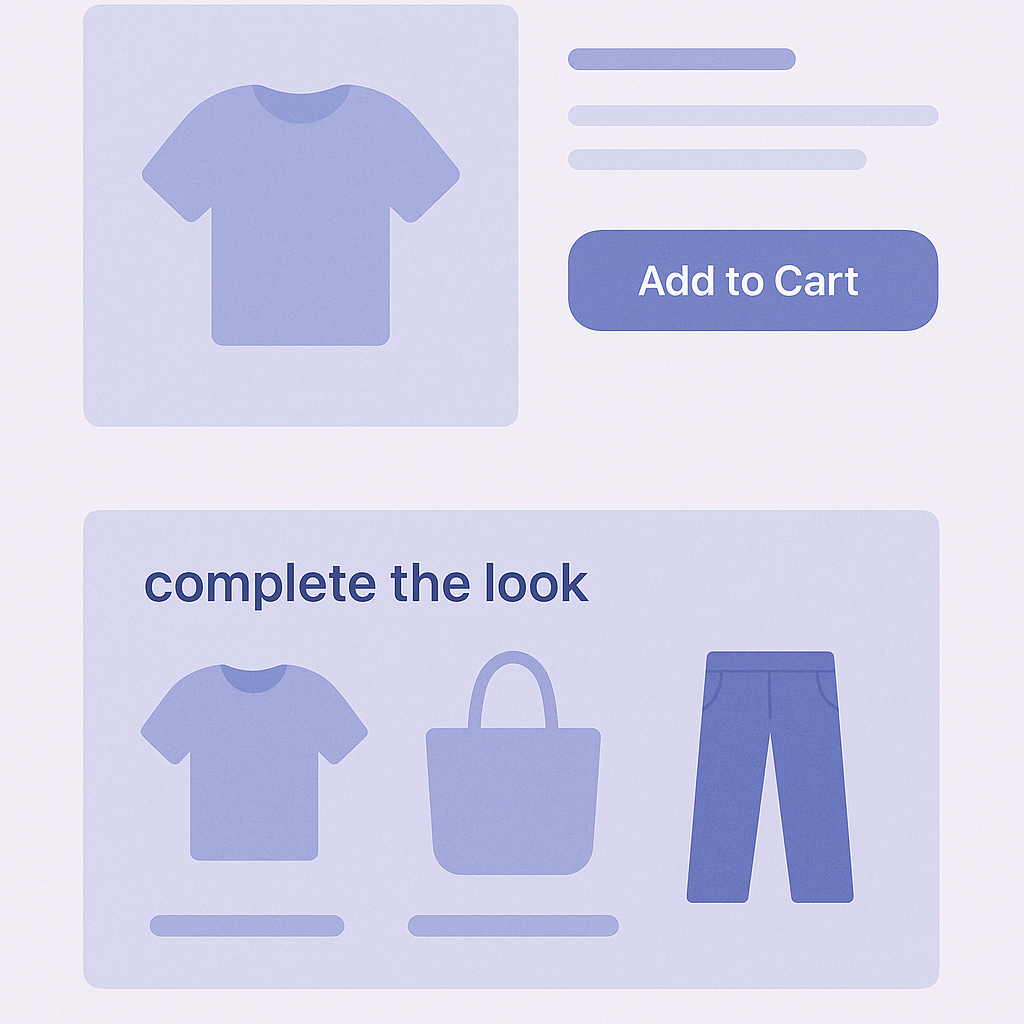
Place Complete the look so that it recreates “professional styling” online without feeling pushy or salesy.
- Place it directly under the cart button to reinforce the buying decision
- Structure the product detail page in this order:
- Product images → price → variant selector → Add to cart button → Complete the look
- Even when space is tight, placing it above reviews tends to increase clicks. - Make it clear in the title that this is a styling suggestion
- Examples: Stylist’s outfit picks / Items that go with this piece / Complete this outfit
- Prioritize copy that instantly communicates it is an outfit suggestion over generic labels like Related products or Recommended for you. - Control visual inconsistency and keep it to one screen of items
- Use consistent thumbnail sizes and aim to show 3–4 items that fit within one screen.
- If you cannot narrow it down:
- Core: 1 bottom
- Plus: 1–2 accessories (bag or shoes)
Start with a “minimum viable outfit” rather than a full head‑to‑toe look. - For non‑apparel, think in terms of “use‑case sets”
- When expanding to categories like lifestyle goods, cosmetics, or furniture, design it as a use‑case set rather than a clothing outfit.
- Examples:
- Cosmetics: base foundation as the core, plus primer, powder, and tools
- Furniture: sofa as the core, plus cushions and a side table
- Lifestyle goods: tumbler as the core, plus straw and bottle brush
- Here too, the FBT (often bought together) plus Similar (same taste) framework still applies.
Common pitfalls and cautions for non‑apparel use cases
- Relying only on Similar logic so it becomes a wall of color variants
- Problem: Complete the look turns into a simple list of color and size variations and does not drive basket building.
- Fix:
- For core categories like tops, enforce a rule that coordinating categories (bottoms, accessories) must be included.
- If your app cannot specify cross‑category combos, put color‑variation suggestions in a separate block (for example, Related products). - Letting raw FBT data leak in and break your brand world
- Problem: strong FBT ties with markdowns or clearance items pull those products into Complete the look and make the whole page look cheap.
- Fix:
- For Complete the look logic, create exclusion tags such as sale or outlet and configure the app or logic to ignore them.
- Alternatively, create a dedicated “styling collection” and only surface items from that collection. - Showing incompatible combinations in non‑apparel
- Problem examples:
- In cosmetics, combining products for different skin types (mixing dry‑skin and oily‑skin lines)
- In electronics, suggesting accessories that do not match the device spec
- Fix:
- Define “can be used together” conditions using categories or tags and only allow those sets in Complete the look.
- Examples: in cosmetics, only include items with matching skin‑type tags; in electronics, only include products with the same compatible‑model tag in FBT and Similar candidates. - Adding too many blocks so the key outfit suggestion gets buried
- Problem: the product page fills up with reviews, rankings, recently viewed, newsletter signup, and more, pushing Complete the look too far down.
- Fix:
- Decide a clear hierarchy such as “Complete the look must sit directly under Add to cart” and “no more than two recommendation blocks per page.”
- On pages where you add Complete the look, hide the existing Related products block or move it down near the footer.
Next steps with RecoBoost
If you use RecoBoost, you can translate the FBT plus Similar approach above directly into the app’s logic. Here is an example workflow.
- Open Shopify admin → Apps → RecoBoost
- If RecoBoost is already installed, open it from your apps list. - Create a new widget in Recommendation settings for Complete the look
- Go to Recommendation settings → Add widget and choose Product detail page as the page type.
- Set the title to wording like Complete the look so it is clear this is an outfit suggestion. - Combine FBT and AI Similar Products in the logic
- In the logic settings, first select FBT and then set AI Similar Products as fallback when there are not enough FBT candidates.
- Use category and tag filters so that, for example:
- Core categories: tops and dresses
- Coordinating categories: bottoms, bags, shoes
are prioritized in the suggestions. - Adjust display rules and design with mobile as the baseline
- In Display settings, first limit visibility to the core, best‑selling collections.
- In Design, configure items per row and thumbnail size so that, in the mobile preview, 3–4 items fit within one screen. - Use performance reports to track orders with multiple items
- In the RecoBoost Reports view, check
- clicks from the Complete the look widget
- number of items added to cart via the widget
- Pay particular attention to whether items per order is increasing, and gradually expand the target categories as you see improvements.