
A Practical Playbook for Maximizing Sales with Recommendations During Seasonal Campaigns
During seasonal sales, using your usual recommendation settings can lead to discount-only listings, distorted rankings, and more stockouts. This playbook walks Shopify merchants through pre-sale setup, in-sale operations, and how to safely revert after the campaign.
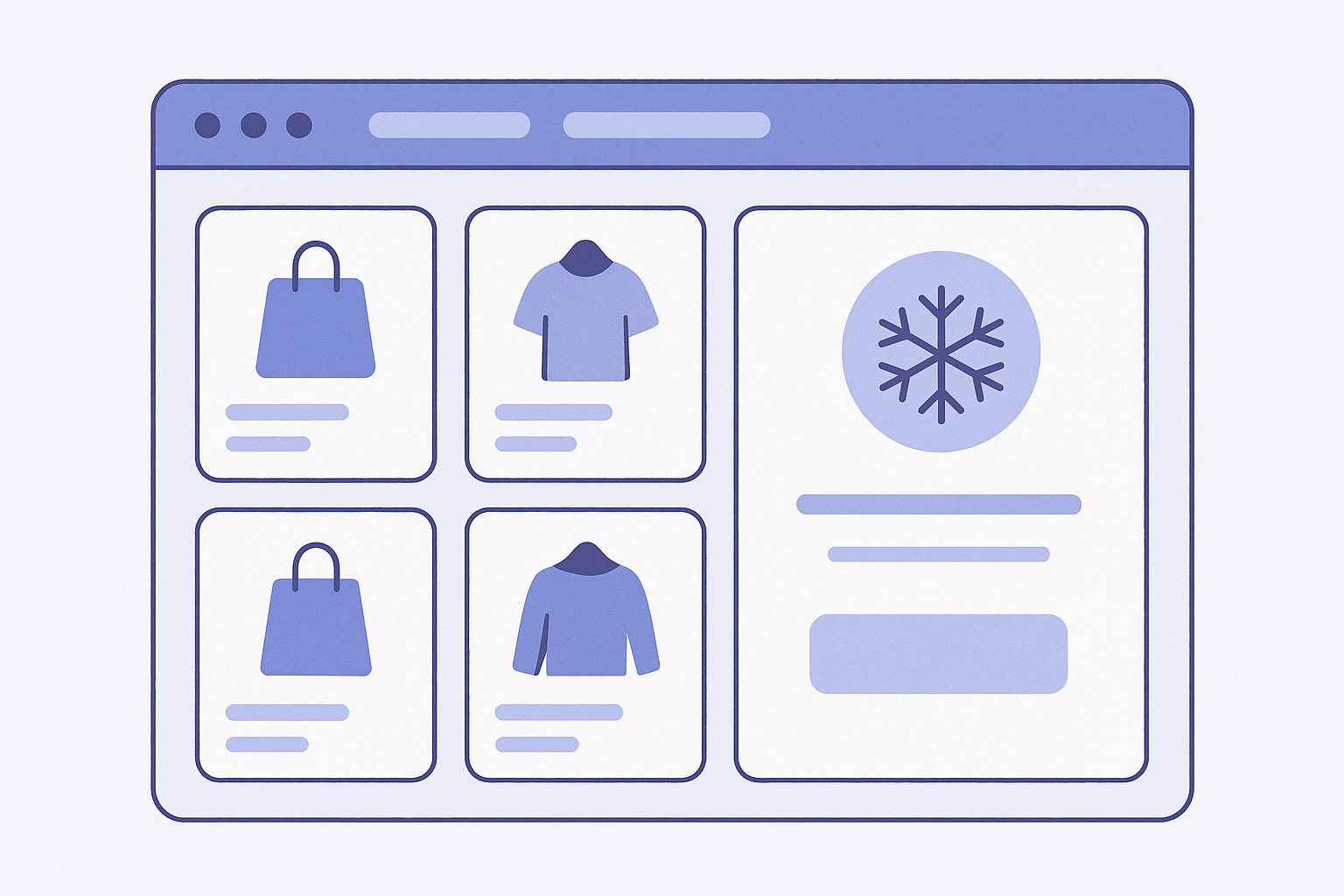
Conclusion for seasonal sale periods: do not leave your recommendation logic as-is
During seasonal sales and large campaigns, if you keep running with the same recommendation logic as usual, you are likely to run into problems like the following.
- Discounted products dominate the top spots and your margin drops
- Temporary bestsellers keep ranking high and your listings stay distorted after the campaign
- Out-of-stock products keep showing for too long, increasing missed sales opportunities
This playbook will cover:
1. How to separate out logic and collections before the sale
2. Operating rules for each recommendation slot during the sale
3. How to reset rankings and logic after the sale ends
We will go through these in order, using the Shopify admin as a reference so you can apply them to today’s sale.
First, decide what you want to sell in each slot
Start by clarifying where you display recommendations and for what purpose. That makes it much easier to keep your sale setup consistent. The four main slots are:
- Product page: use Related products or Frequently bought together to increase average order value
- Cart page: use Post-add-to-cart recommendations to encourage bundle buys and prevent forgotten items
- Homepage: use Bestsellers or Trending now to reduce bounce right after visitors land
- Collection page: use Popular in this collection or Recommended to support product discovery and narrowing down choices
During sale and campaign periods, filling every slot entirely with discounted products often backfires. Set a clear policy by prioritizing margin and inventory clearance, for example:
- Homepage: push the sale strongly (higher ratio of sale products)
- Product page: keep cross-selling full-price items to protect margins
- Cart page: mainly recommend sale items you want to clear from inventory
- Collection page: highlight sale items but mix in regular products so customers still have options
Step-by-step: what to do before, during, and after the sale
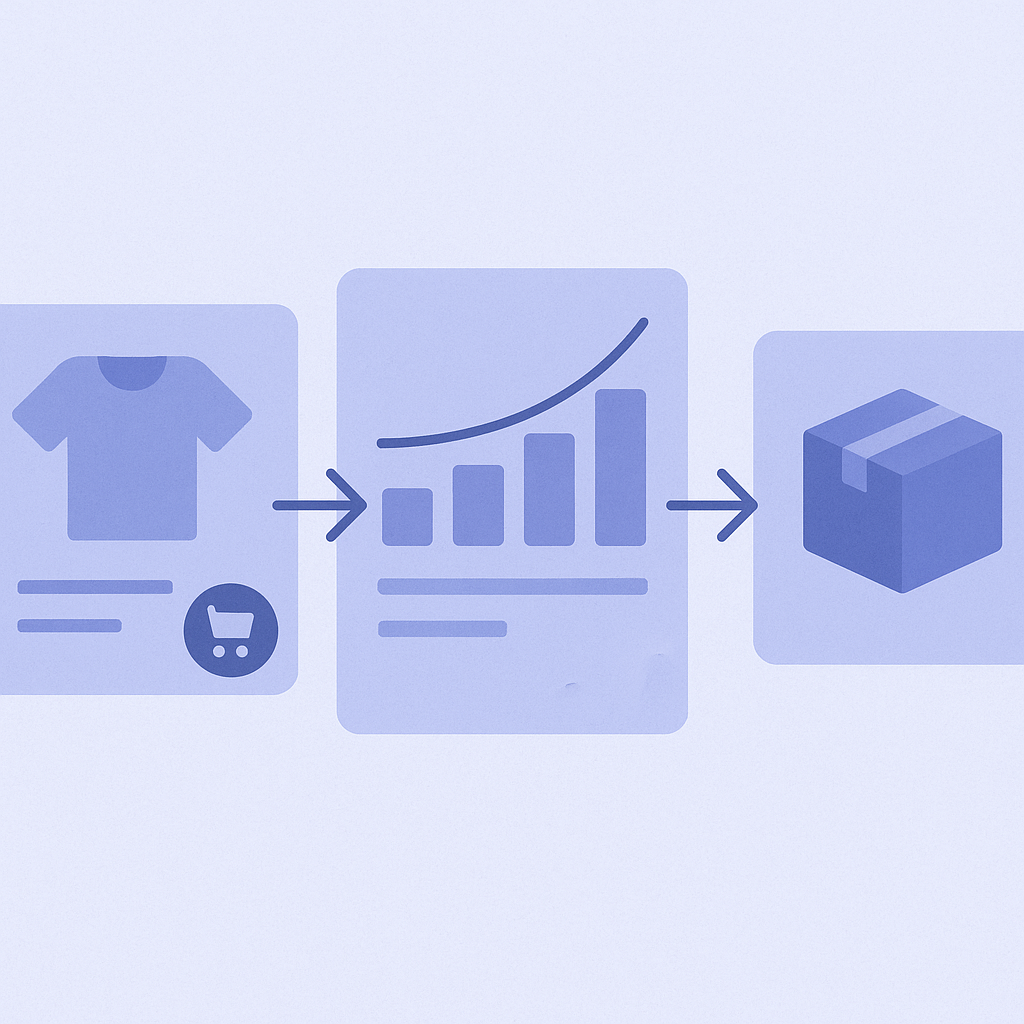
- Create a dedicated sale collection in the Shopify admin
- Go to Products → Collections and click Create collection.
- Give it a clear name such as “Sale” or “SALE”.
- For an automated collection, set conditions such as Price is less than compare at price to define sale items.
- For a manual collection, add all sale items to this collection in advance. - Create a dedicated recommendation section for the sale on the homepage
- Go to Online Store → Themes → Customize.
- On the homepage, add a recommendation-type section such as Featured collection or Collection list.
- For the source collection, select the Sale collection you just created.
- Set a heading like “On sale now” so shoppers can clearly distinguish it from your usual recommendation sections. - Do not make all product-page recommendations sale-only
- In Online Store → Themes → Customize, open a product page.
- Check the product recommendation section (Related products, You may also like, etc.).
- If you are using an app that lets you choose the logic, start from content-based logic such as AI similar products or Customers who viewed this also viewed, and then:
- During the sale, slightly prioritize sale items within the same category
- But keep the settings so that high-margin regular products are always mixed in as well. - On the cart page, prioritize sale items you want to clear from inventory
- In Online Store → Themes → Customize, open the cart page (or drawer cart).
- Add or edit the cart recommendation section (Recommended for you, You might also like, etc.).
- Set the source collection to the Sale collection, and adjust so that items from different categories or price points than those in the cart are suggested.
- During the sale, focus this slot on overstocked items to drive inventory clearance. - During the sale, assume ranking distortion and switch to time-limited logic
- If your app uses logic such as Most popular or Top revenue, rankings will fluctuate heavily during the sale.
- For the sale period:
- Homepage and sale landing pages: actively use Revenue-based ranking that reflects sale performance
- Product-page recommendation slots: prioritize View-based or Similarity-based logic and reduce reliance on sales ranking
In short, split logic by slot. - Right after the sale, treat sale-period data separately
- Within a few days after the sale ends, check the app’s Report or Analytics screens to see:
- Bestsellers during the sale period
- Bestsellers among full-price products
separately.
- For slots using popularity-based logic:
- Temporarily shorten the time window filter, e.g., from last 30 days to last 7 days, to dilute the impact of the sale
- Or, if the app allows, consider excluding the sale-period data altogether. - For 1–2 weeks after the sale, use hybrid logic and gradually return to normal
- If you switch everything back to normal logic immediately after the sale:
- Remaining sale stock will suddenly lose visibility
- Products that gained fans during the sale will get buried
These are real risks.
- For 1–2 weeks post-sale:
- Homepage: use hybrid logic such as Popular + New arrivals
- Product pages: Similar products with some prioritization of remaining sale items
Then gradually revert to your usual configuration while watching performance.
Placement tips: where to highlight the sale and where not to
If you push the sale everywhere, you drive down average order value and dilute your brand. Be deliberate about the placement and tone of recommendations to create contrast and control.
- Homepage: build a clear entry point into the sale
- Place a recommendation section powered by the Sale collection near the first view, connected visually to your sale banner.
- Below that, add a standard Bestsellers section so your site does not look like a “discount-only” store. - Product pages: layout that protects the value of full-price products
- Directly below the product description and reviews, intentionally show related full-price products.
- Push sale items further down the page (for example, near Recently viewed) so that the visual flow separates them and your average order value is less likely to drop. - Cart: give hesitant shoppers a final nudge with sale items
- Upper cart area: simple, low-distraction recommendations that do not interfere with order review
- Lower cart area: place “Limited-time value sets” or similar from the Sale collection
- If you see high cart abandonment, reduce recommendations in the upper area and consolidate them at the bottom. - Sale landing page: mix in regular products to drive onward browsing
- Near the bottom of the sale landing page, add a small recommendation block of regular products from the same category to create a path to higher-end models and your standard lines.
Common pitfalls and how to avoid them
- Mistake 1: filling every recommendation slot with sale products
- Result: AOV and margins drop sharply, and loyal customers start waiting for sales.
- How to avoid it:
- Homepage and cart: sale-heavy
- Product pages: mainly regular products, sale as secondary
Define distinct roles for each slot. - Mistake 2: feeding sale-period sales data straight into popularity rankings
- Result: Only products that were on sale stay at the top long term, and new products lose exposure.
- How to avoid it:
- Shorten the date range filter after the sale
- For slots that rely heavily on popularity, temporarily switch to View-based or Similarity-based logic and wait until the data stabilizes. - Mistake 3: out-of-stock sale items keep showing in recommendations
- Result: Shoppers click but cannot buy, and CVR drops.
- How to avoid it:
- In your recommendation app, always enable the setting to Exclude products with 0 inventory.
- If you use a Sale collection, regularly remove items that have gone out of stock from that collection. - Mistake 4: forgetting to revert settings on the last day of the sale
- Result: You unknowingly stay in “sale mode” for a long time, which damages your brand.
- How to avoid it:
- Add a calendar task for the sale end date: “Revert recommendation settings to normal”.
- Prepare a preset (or written notes) for your 1–2 week soft-landing configuration after the sale.
Your next step with RecoBoost
If you are using RecoBoost, you can map the operations above almost one-to-one and start testing them right away.
- In App → RecoBoost → Recommendation slots, create a dedicated sale slot
- Create a new slot for the homepage and set its source collection to your Sale collection.
- Base its logic on Sales ranking or Click ranking and enable the option to exclude out-of-stock products. - Use RecoBoost logic to separate normal and sale-period behavior
- For product-page slots, prepare separate settings: normal mode uses AI similar products, sale mode uses AI similar products with sale-product priority.
- For cart slots, enable the Prioritize overstocked products option only during the sale, and turn it off after the sale ends. - Check for post-sale ranking distortion in RecoBoost reports
- In App → RecoBoost → Reports, compare rankings for periods with and without the sale.
- If products that only sold during the sale dominate the top ranks, temporarily switch the affected slots to AI similar products or View-history-based logic and collect fresh data for a while.