
Recover abandoned carts with smart email and thank-you page recommendations
A practical playbook for recovering Shopify abandoned carts using recommendations in emails and on the thank-you page. Explains which products to show in each touchpoint and where to place them for maximum recovery.
Key takeaway: catch abandoned carts “now” and “right after”
You will recover more abandoned carts if you design recommendations in two stages: first to bring customers back now, and then to remind them right after they buy.
- Abandoned cart email: bring back users who left with “items in cart + related recommendations”
- Thank-you page: remind purchasers of abandoned or considered items with “add-on purchase recommendations”
This playbook organizes, step by step, how to design abandoned cart recommendations for a Shopify store you can start today, and how to split roles between email and the thank-you page.
Baseline: abandoned cart scenarios and what recommendations should do
First, clarify which “abandonment timing” you are targeting. Roughly, there are three.
- Cart page abandonment: customers leave before starting checkout. They are often hesitating over shipping, total price, or stock.
- Mid-checkout abandonment: customers leave while entering payment or shipping details. Trust and payment options are often the main blockers.
- After purchase, they forget the rest of the cart: they buy only part of what they considered and forget the remaining candidates.
Recommendations should play a different role in each of these scenarios.
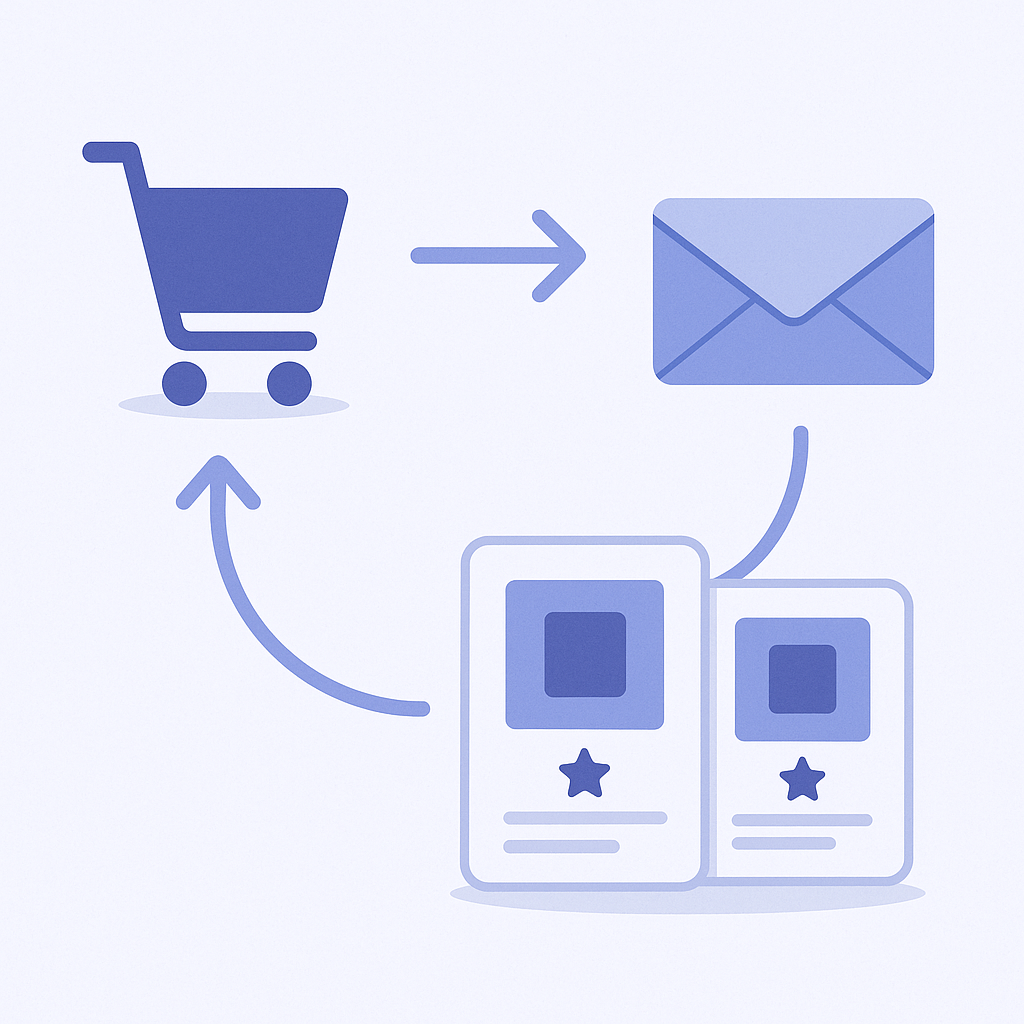
- Abandoned cart email: help them remember what they left in the cart and resolve their “hesitation” by suggesting similar items or sets.
- Thank-you page: use the high motivation right after purchase to remind them of items they forgot or had left as cart candidates.
With this in mind, the next sections walk through concrete setup steps, first for email and then for the thank-you page.
How to: embed recommendations into your abandoned cart emails
- From the Shopify admin, go to Apps and check which email app you are using.
- Identify your current email app (for example: Shopify Email, Klaviyo).
- If you do not have one yet, first go to Shopify admin → Marketing → Automations and turn on Shopify’s default abandoned checkout email. - In your email app, open the “abandoned cart” automation or flow.
- From the workflow/flow list, select the flow for Abandoned checkout / Abandoned cart.
- Make sure the email trigger is set to “checkout started” or “cart abandoned” (or equivalent). - Design the email so that a “recommendation block” sits directly under the cart-details block.
- Open the email editor and review the current layout.
- Plan to add a new section/block right after the cart items block that inserts the products in the cart.
- Use a heading like “Still considering these?” or “Popular to pair with your picks” that helps clear doubts or suggests sets. - Set the recommendation logic to “items related to products in the cart.”
- If your email app has built-in recommendations:
- Add a block such as Recommendation / Featured products and choose logic like Related products or Frequently bought together.
- If you use a recommendation app:
- In the app, go to (recommendation app name) → Widget settings and check whether it can generate an HTML snippet for email.
- Choose logic such as Cart-based recommendations / Cross-sell, and limit the number of products to around 3–4. - If you offer a discount, show it in the same block as the recommendation.
- When you use an abandoned cart coupon, add a text block above the recommendations and clearly state:
- Coupon code
- Expiry date
- That the coupon also applies to the recommended items
- Structure it as “there is a discount → how about adding these too?” so the flow naturally goes from coupon explanation to recommendations. - Always test-send and check the mobile view.
- Use preview / test send to see how the email looks in mobile Gmail or the iPhone Mail app.
- Make sure recommended items appear as one item per row (stacked vertically), are easy to see, and that images are not too small; adjust grid settings if available.
How to: show “forgotten item recovery” recommendations on the thank-you page
Use the thank-you page (order confirmation page) to remind customers who have just purchased about items that were still in the cart or products they had also been considering.
- In the Shopify admin, go to Settings → Checkout.
- From the Checkout or Customize menu, check whether you can add app blocks or scripts to the thank-you page. This depends on your theme and apps. - Go to Online Store → Themes → Customize, then open the Order status page.
- In the page selector at the top right of the theme editor, choose Order status page / Thank you page.
- Review the list of sections and app blocks you can add. - Place the recommendation widget directly under “Order details.”
- If you can add a block from your recommendation app on the thank-you page:
- Add section → App block → (recommendation app name).
- Drag the block so it sits right under the order summary (purchased items list).
- If you need to paste code or a snippet:
- In Theme → Customize → Order status page, choose a Custom HTML (or similar) block.
- Paste in the thank-you-page-specific code generated by your recommendation app. - Base the logic on “purchased items + browsing history.”
- On the thank-you page, recommendations based on products that go well with what they just bought tend to get more clicks than showing the abandoned cart itself.
- In your recommendation app, select cross-sell based on purchased items, or personalization based on browsing history.
- If your app can read “items left in cart,” set the priority to show cart leftovers first, then similar/related products. - Limit to 2–4 items and use button text that clearly says they can buy right away.
- Overloading the thank-you page with products hides the core order-complete information.
- Show only 2–4 products and use button copy like “Add this to my order now” so it feels like a quick additional purchase with minimal extra steps. - Place a test order and check the actual thank-you page.
- Use Shopify test mode or a zero-price product to run a test checkout and display the thank-you page.
- Check relevance to purchased items, how it looks when scrolling on mobile, and how easy it is to tap the buttons.
Placement tips: splitting roles between email and the thank-you page
For abandoned cart recovery, it is crucial to decide what you show where. Do not just copy and paste the same recommendations; tailor them to each touchpoint’s role.
- Make the abandoned cart email a “reminder + backup option.”
- The main focus is the exact items they added to the cart. Show these prominently first.
- Use recommendations as a backup: 3–4 products that say “if you are unsure about stock or price, here are alternatives.”
- In the subject line and intro text, say that their cart is kept as is; this tends to increase clicks. - Make the thank-you page dedicated to “add-on purchases.”
- The goal here is not to send them back to the cart to redo checkout, but to get them to add more on top of what they just bought.
- Prioritize logic that surfaces typically forgotten items: consumables, accessories, set items, and similar. - Offset the logic so you are not showing the exact same products in both places.
- Example:
- Abandoned cart email: lean toward AI-similar products and alternatives.
- Thank-you page: lean toward frequently bought together items and bundles.
- This way you cover both comparison shopping needs and impulse add-on purchases. - Design for mobile first and think in terms of “what fits on one screen.”
- Abandoned cart email: adjust so that the first view shows the cart items, with 1–2 recommendation items immediately below.
- Thank-you page: aim for a structure of order-complete message → order summary → recommendations that fits within about 2–3 scrolls.
Common mistakes and how to avoid them
- Showing generic “best sellers” by default.
- Mistake: showing the same best-seller ranking to everyone, regardless of their cart, so recommendations are unrelated to the abandonment.
- Fix: in abandoned cart emails, always start from cart-based recommendations; on the thank-you page, always start from purchased items. - Pushing recommendations all the way to the bottom of the email.
- Mistake: they get buried under coupon explanations and long copy, so almost no one sees them.
- Fix: in abandoned cart emails, place recommendations directly under the cart items with a short line like “These are also eligible right now.” - Overloading the thank-you page with information.
- Mistake: upsell banners, social follow prompts, newsletter signup, and recommendations all compete for attention, so recommendations do not get clicks.
- Fix: limit recommendations on the thank-you page to 2–4 products with a single simple heading, and decide their priority versus other elements. - Testing only on desktop so the layout breaks on mobile.
- Mistake: on mobile, users have to scroll sideways or text is too small to read, leading to drop-off.
- Fix: always test on actual phones and adjust grid layouts and image sizes based on that view.
Your next step with RecoBoost
If you are using RecoBoost, you can start your abandoned cart recommendation setup as follows.
- In the app, go to RecoBoost → Widget management and create a widget for the thank-you page.
- For placement, select Thank-you page / Order status page.
- For logic, choose Cross-sell or AI-similar products and set the number of items to 2–4. - In RecoBoost → Reports, review revenue from abandoned cart and thank-you page recommendations.
- Look at which logics get more clicks and whether email or the thank-you page performs better, then adjust item counts and logic splits accordingly. - Using the email integration feature (with supported apps), issue a snippet for your abandoned cart emails.
- From RecoBoost → Integrations, connect your supported email app and obtain the HTML snippet for abandoned cart emails.
- In your email app, open the abandoned cart flow and edit the email body, inserting that code where you want the recommendation block.