
Designing Shopify inventory to avoid stockouts with locations and alerts
To cut stockouts in Shopify, you need correct location-level inventory, smart alerts, and rules for selling when stock hits zero. This post covers multi-location design, backorders and special-order handling, and common on-the-ground failure patterns from a practical operations view.

Completely eliminating stockouts in Shopify is hard, but you can design things so that even when they happen, sales do not drop. The key is to manage inventory correctly per location and combine alerts with sales settings so you neither run out nor miss opportunities. The more you run both physical stores and ecommerce, the more this design directly impacts revenue and customer experience. This article follows Shopify’s official behavior and breaks things down into steps that are easy to implement on the ground. The core is captured in these three points: 1) Split locations according to reality and tie inventory and sales channels together 2) Put in place alerts that tell you when inventory is getting low 3) For products you want to keep selling even when stock is out, define rules and set up both settings and on-site messaging. With that as a premise, let us walk through the details.
Foundations of Shopify inventory: how locations relate to stock levels
Before you think about stockout countermeasures, you need to understand how Shopify inventory works. For products with inventory tracking enabled, Shopify keeps a separate stock count per location. A location is any physical place where you store inventory and can ship from, such as a warehouse or a retail store. With multi-location, one product can hold stock at multiple locations. For example, you can manage it as “30 units in our own warehouse and 20 units in the retail store.” You then assign each location to sales channels to control which location’s stock is sold in the online store. Stock at locations not assigned to the Online Store channel is not counted as online inventory. You can also assign a location only to in-store sales.
The sum of each location’s stock is shown as the total inventory. However, when an order comes in, which location actually fulfills it is decided by Shopify’s fulfillment priority rules. A common failure here is thinking you are selling store inventory online as well, but the store location is not assigned to the Online Store channel, so the product shows as out of stock. Adding more locations gives you more operational flexibility, but unless you design “which location’s stock is used by which sales channel,” you will face issues such as having stock but not being able to sell it, or overselling online and creating stockouts in the physical store.
Start by going to Settings → Locations in the admin and listing all places where you actually hold inventory, together with which sales channels are assigned to each location. If legacy or incorrect locations remain, such as closed stores or unused warehouses, it becomes harder to grasp your real stock. Just cleaning up locations alone can drastically reduce the lost sales from “we have stock, but it shows as out of stock.”
Design points when running multi-location inventory
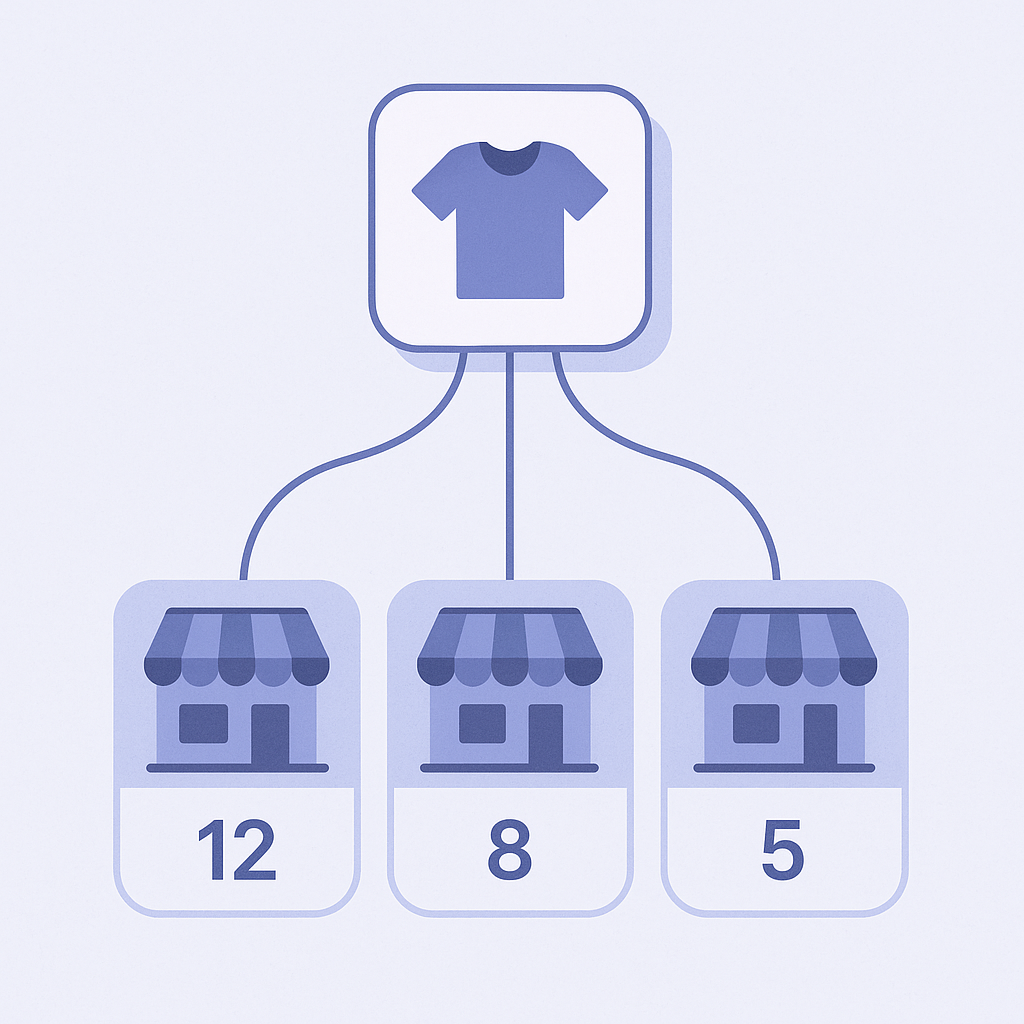
If you are using multi-location, you have probably felt that “inventory management became more complex the moment we added locations.” To prevent stockouts, it is crucial to decide in advance how far you will expose each location’s stock to online sales. There are three common patterns: 1) Separate an online-only location and store locations 2) Open up store inventory to online sales as well 3) Centralize all stock in a warehouse location and treat stores as order-on-request. The pattern you choose changes the balance between “how easily stockouts occur online” and “how often stores suffer stock shortages.”
For example, if a bestselling product shares inventory between stores and online, heavy weekend store sales can suddenly deplete stock and leave online sold out on Monday. On the other hand, if you keep online-only stock in a separate location, you lower the online stockout risk, but if total stock is low, stores may miss sales. In practice, a realistic approach is to vary how you use locations by product type, for example “reserve online-only inventory for top sellers” while “use shared stock for high-priced, slow-moving items.”
In Shopify, you have to adjust each location’s inventory whenever goods move in or out, apart from manual stock updates. If you have a physical store, POS sales automatically reduce that store location’s inventory, but non-POS movements like in-store holds or inter-store transfers will gradually create discrepancies. Setting an operational rule such as “check weekly for differences between in-store sales records and Shopify inventory” will improve the accuracy of your stockout forecasts.
Preventing stockouts ahead of time: how to think about inventory alerts

To prevent stockouts, what matters is not noticing “the moment stock hits zero,” but triggering alerts at the stock level that accounts for your replenishment lead time. For example, if a product takes ten days from ordering to arrival, you need a notification when stock falls below “average daily sales × 10 days + safety stock.” If a product sells an average of five units a day, with a 10-day lead time and safety stock of five units, then you need an alert once inventory drops below 55 units.
The Shopify admin does not have a native feature to automatically email you when stock falls below a set threshold. However, if you use Shopify Flow (on compatible plans) or inventory-alert apps, you can configure notifications based on stock levels. In a multi-location environment, you should be explicit about the granularity, for example “monitor inventory at the online-only location” or “monitor total inventory across store plus online.” If it is unclear which inventory figure you use to decide replenishment, you will often get skewed situations such as “stores still have stock, but the online allocation has run out.”
A common operational failure is setting a single inventory-alert threshold across all products. Fast- and slow-moving items need very different thresholds. At minimum, define lead times and safety stock for three groups such as “top sellers,” “standard,” and “long-tail,” then use CSV or apps to tag products or add metafield flags with those groups. That makes it far easier to design realistic alert rules.
Protecting revenue even when stock is out: selling, waitlists, and special orders
In Shopify product settings, if you check “Continue selling when out of stock,” you can keep accepting orders even when inventory is zero or below. This effectively lets you run something close to backorders or preorders. Compared to having the product page stop selling entirely when it sells out, this is useful for not losing high-intent customers. However, if you enable this, you must clearly explain on the product page when and how the item will be delivered.
A typical real-world problem is that leaving “continue selling when out of stock” enabled leads to more orders than expected, so backorders exceed the incoming stock. To avoid this, limit which products can use this setting and add a rule such as “set an expected incoming quantity, and stop selling temporarily once orders exceed that.” For example, if the next shipment will bring 100 units, you might say “accept up to 80 units as backorders” and “once orders exceed 80, uncheck the continue-selling box.” If you store the expected incoming quantity in a metafield or tag, it becomes easier to control via apps or spreadsheets.
For products you never stock and always treat as special-order items, clearly stating the lead time is also essential, for example “shipping will take around X–Y days longer than usual.” Shopify does not provide a standard feature to automatically change wording based on stock levels, but by combining product metafields with theme customizations, you can display status labels such as “In Stock,” “Special Order,” or “Preorder Open.” If you only turn on continue-selling without this kind of clear messaging, you will be flooded with inquiries and cancellations, which in practice creates more burden than a simple stockout.
Customer experience at stockout: notifications, alternatives, and better UI
Because stockouts can never be completely avoided, the customer experience depends on how smoothly you guide people to their next action once something is out of stock. Focusing on three elements reduces churn: 1) accept restock notifications 2) suggest similar products 3) show stock status clearly. Restock notifications are typically implemented with an app that displays a registration button when stock hits zero and automatically sends an email when inventory increases. The number of registrants per product is also a signal for which items to prioritize for reorders.
Suggesting alternatives works especially well on out-of-stock product pages. If you recommend other colors, sizes, or similar-category items, you can turn “I cannot buy this, so I will leave” into “I am okay with buying a similar item.” For categories like apparel and cosmetics, where substitutes are easy, pageviews on out-of-stock items can translate directly into sales of other products. Conversely, for single-brand or limited-edition focused stores, pageviews on sold-out items can serve as a gauge of fan enthusiasm, and you can use that data to prioritize re-production or future product planning.
In terms of display, do not just end with a blunt “Out of stock” or “Sold out.” Pair it with next actions such as “Next restock: late August,” “Get a back-in-stock alert,” or “See other colors here.” On list or collection pages, you should also decide whether to hide out-of-stock products altogether or leave them with a prominent SOLD OUT label. Sometimes you may want to show them as proof of popularity, but if half of a listing is out of stock, that usually hurts the user experience. Build an operational routine to regularly identify products that have been out of stock for a long time and archive or hide them.
How to leverage RecoBoost: recommendations that react to inventory
RecoBoost lets you control product recommendations based on inventory status. For example, you can exclude low-stock items from top-page recommendations, or on out-of-stock product pages, prioritize in-stock items from the same category. This helps you balance inventory risk and revenue. Even in a multi-location setup, RecoBoost can optimize recommendations using only the inventory assigned to the Online Store channel, so you avoid cases where products with store-only stock but zero online stock keep appearing in recommendations. Combined with inventory alerts and incoming-stock operations, this makes it easier to both minimize stockouts and protect revenue via smarter recommendations when items do sell out.
Rather than aiming to drive stockouts to zero, it is more realistic for Shopify operations to decide in advance which inventory is sold where, when to trigger replenishment, and how to follow up when stock does run out. By combining locations, inventory alerts, and the continue-selling setting, and then defining rules that match your product lineup and organization, you stabilize day-to-day operations and steadily reduce lost sales from stockouts.