
How to Handle Shopify Out‑of‑Stock Pages and Show Alternatives
How you display out-of-stock products in Shopify has a major impact on revenue. This article walks through stock settings, whether to allow backorders, and how to surface alternative items using only the admin and theme settings.

When a product goes out of stock in Shopify, you should not leave it as a dead-end “cannot buy” page. Two things matter: first, clearly communicate stock status; second, always provide a way forward, such as alternatives, restock alerts, or backorders. If you just show “Sold out”, more than 90% of visitors who reached that page with purchase intent will simply leave. Below, we整理 how to configure this with Shopify’s native features and how to present alternatives, step by step from an operator’s perspective.
Understand Shopify’s basic out-of-stock behavior
Start by understanding how Shopify manages inventory and when it treats a product as “out of stock”. In the admin under Products > target product > Inventory, you set how stock is tracked and the quantity. When a variant’s stock drops to 0 or below and “Continue selling when out of stock” is unchecked, that variant is labeled “Sold out” on the online store, and in most themes the Add to cart button becomes disabled.
It is common to see cases where someone manually set inventory to 0 without realizing this behavior and the item then did not sell for over a week. A sold-out label is a strong signal to customers that “you cannot buy this here,” so avoiding unintentional stock-outs is fundamental. The longer the lead time for replenishment, the more important it is to share these stock rules within your team.
When inventory differs by variant (size, color, etc.), stock is tracked per variant. Depending on whether only certain colors are sold out or the entire product is unavailable, the type of alternative proposal you should present will differ. First get a clear picture of “exactly at what level inventory has run out.”
Three kinds of missed opportunities when you “leave it sold out”
Leaving an out-of-stock product page untouched leads to at least three types of missed opportunities. The first is visitors dropping off because you do not guide them to something they can buy now. Shoppers who reach a product page are generally highly motivated, but if they just see “Sold out” and no options, they do not know what else to buy and head to another store.
The second is missed sales after restock. Even when inventory comes back, the only one who knows is you; most customers will never revisit that product page. If you do not offer a restock notification path, it takes longer for the replenished stock to start selling and your inventory turns more slowly.
The third is wasted ad spend. If your ads or social posts send traffic directly to an out-of-stock product, you pay for every click but lose the chance to recoup it because the item cannot be purchased. In one case the author saw, a store failed to notice that a promoted product was sold out and ran ads for a full month, effectively wasting 30–40% of its ad budget.
Even if you cannot replenish immediately, combining one or more of “alternatives,” “restock alerts,” and “backorders” lets you turn an out-of-stock page from a dead-end into a page that offers a next step.
How to decide whether to allow backorders
In Shopify, you can keep selling a product even after its inventory reaches 0 by checking “Continue selling when out of stock.” Operationally this is equivalent to taking backorders. From the customer’s perspective, it looks like a “pre-order” or “special order” purchase.
Whether to use backorders should be decided based on lead time and the certainty of supply. For example, if you have a staple item where ongoing supply from the manufacturer is almost guaranteed and you can usually restock within two weeks, backorders carry little risk. On the other hand, if the manufacturer cannot commit to the next delivery or the item may be changed or discontinued, allowing backorders tends to increase cancellations and refunds and can end up damaging trust.
If you do accept backorders, always show an estimated delivery date on the product page—for example, “Ships in X–Y business days” or “Next restock expected late Month.” Shopify does not automatically change messaging when stock hits zero, so use theme translation settings or theme code changes to switch text based on inventory quantity or status. This reduces customer anxiety.
There are also cases where merchants turned on “Continue selling when out of stock” to start backordering, but then inbound stock was delayed, shipments slipped by more than a month, and support was flooded with inquiries. Only permit backorders for a limited set of products where both the lead time and supplier reliability are clearly defined.
Out-of-stock display patterns and recommended setups
It helps to think of out-of-stock display patterns in three broad types: (1) stop selling completely by hiding or disabling the purchase button; (2) accept backorders; (3) do not sell for now but collect restock notifications. Decide in advance which pattern you will use by product or category so frontline decisions are consistent.
Completely stopping sales is suitable for items you will not restock or that you want to pause temporarily. Even then, do not just remove the button; add a short reason such as “Discontinued” or “Sales have ended for this season” to reduce confusion. Where possible, also provide a link or block for alternative products, as described later.
For the backorder pattern, keep the Add to cart button but add supporting text near it such as “Ships from early Month” or “Available for pre-order.” Depending on the theme, you may be able to change button labels or badges when inventory is 0. Even with themes that do not support this out of the box, you can use the theme editor or code to add conditions like “show this message only when inventory is 0 and selling is allowed.”
Collecting restock notifications only is best when you are sure you will restock but the timing is unclear. Shopify does not provide a native restock notification form, so it is standard to add this via an app or external tool that lets customers register their email and automatically notifies them when inventory is back. If you can also surface alternatives alongside this, you will see more orders without waiting for restock.
How to show alternatives: align relevance and stock status
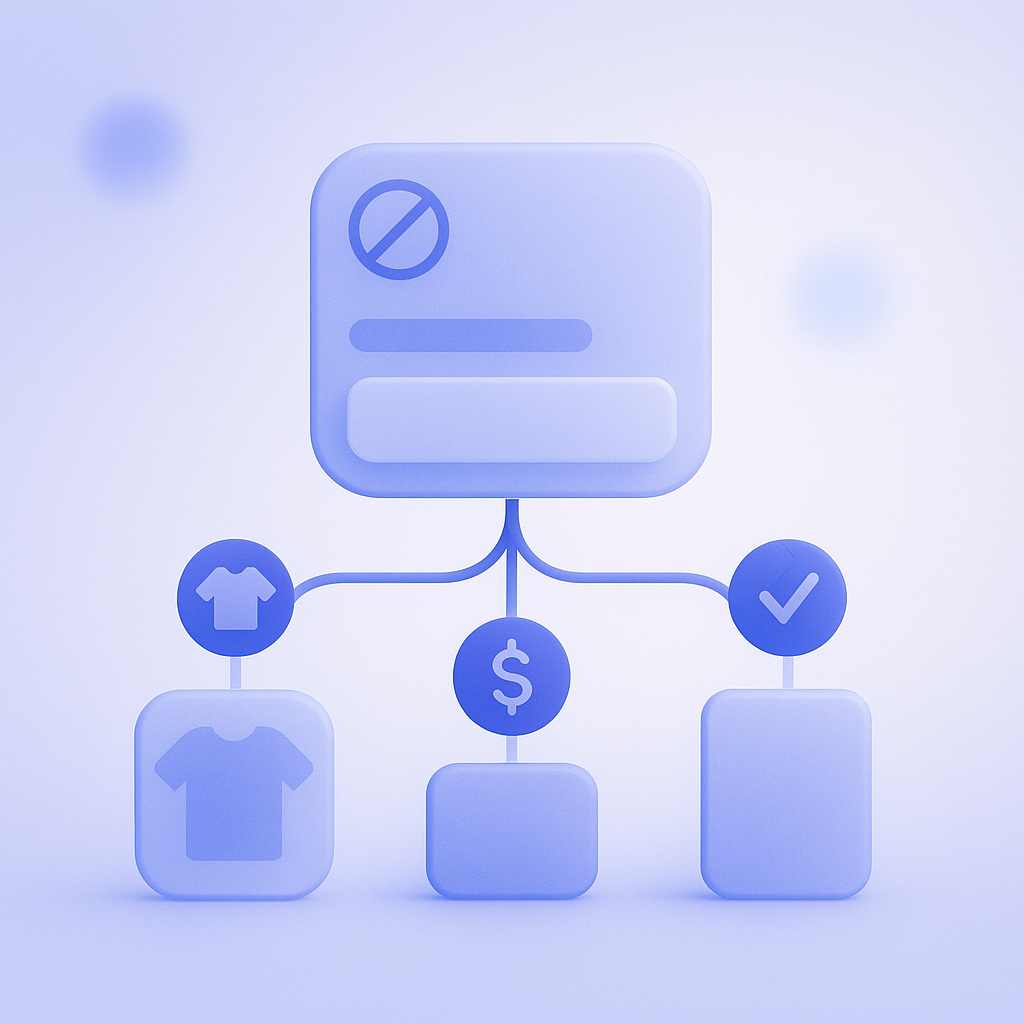
The most important element on an out-of-stock page is how you present alternative products. A common mistake is “just showing four items from the same collection,” which often results in items with the wrong size or use case. In that situation customers cannot find a true substitute and simply leave.
When surfacing alternatives, at minimum align on two axes. The first is use case or purpose. If a running shoe is sold out, prioritize other running models and push walking shoes or sandals to a lower row. The second is price band. If the original item is around ¥10,000, focusing on a range of roughly ¥8,000–¥12,000 makes purchase decisions easier.
Another key point is to only show items that are actually in stock as alternatives. A typical failure is an auto-recommendation block sorted by popularity where two of the top three products are also sold out. Use Shopify collection conditions or app filters to restrict recommendations to items with an inventory quantity of at least 1.
In practice, a realistic approach is to add a block on the product page such as “If this item is sold out, we also recommend:” and configure it in the theme or app to appear only when the main product is out of stock. For staple or high-volume items, manually linking handpicked alternatives will make your recommendations far more accurate.
How to leverage this with RecoBoost
RecoBoost can generate recommendations that factor in stock status, so you can, for example, automatically show only similar in-stock products on sold-out product pages. You might set a rule that, when a specific product sells out, the recommendation slot on its page prioritizes “in-stock items from the same category and similar price range.” This keeps alternative suggestions fresh without manual swapping. If you want to handle products that accept backorders differently from those that do not, you can split conditions and deliver separate recommendation patterns, making it easier to run flexible strategies based on inventory status.
Even if you cannot eliminate stock-outs, deciding “what you will propose on an out-of-stock page” can greatly soften the revenue impact. Once you整理 your Shopify inventory settings and backorder policy, combine three elements—alternative products, restock notifications, and recommendations—to design out-of-stock operating rules that fit your assortment.