
Practical ways to run Shopify collections with automated conditions
Designing your store around Shopify automated collections dramatically cuts merchandising time as SKUs grow. This post explains condition design, common pitfalls, and when to fall back on manual collections, at a level you can apply directly in daily operations.
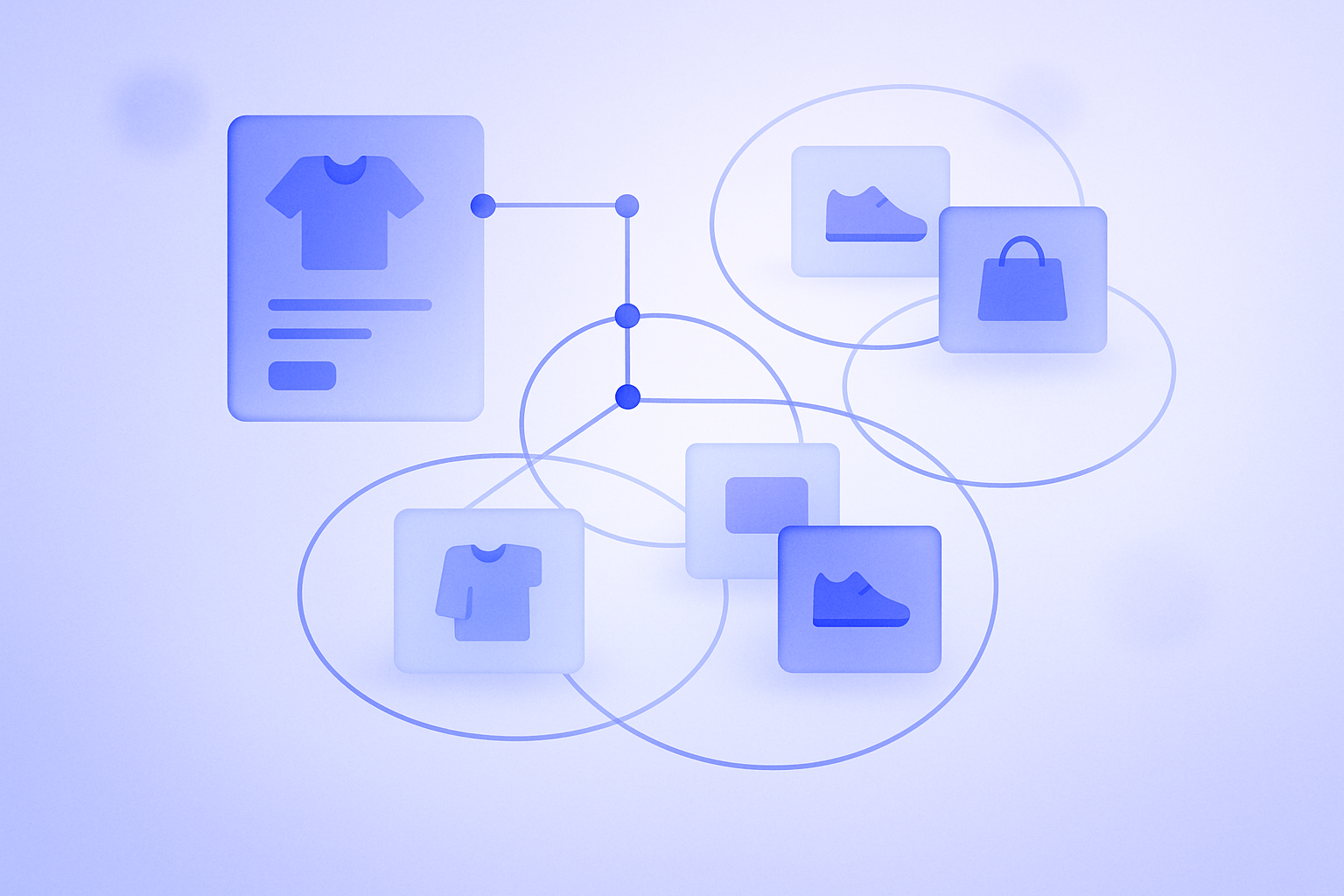
As a rule, building Shopify collections around automated conditions will lower your operating cost. As long as new products meet the criteria, they drop into the right collections automatically, preventing missed assignments and stale listings. But if you design those conditions poorly, you quickly run into problems like key products not appearing, or unrelated items getting mixed in.
This article organizes an operations design that assumes automated collections, using only standard Shopify features: concrete condition patterns, common failure cases, and how to split roles with manual collections. At the end there is one short section on how to hook this up with RecoBoost.
Bottom line: use automated collections as the default, patch only the exceptions manually
In practice, it is easiest to run your store if you base the overall category structure and feature pages on automated collections, and only use a few manual collections where you truly cannot express the logic as conditions. Shopify’s official documentation also states that collections can be either automated or manual, and that products matching the conditions are added and removed automatically.
Once you pass around 100 SKUs, manually assigning each product into multiple collections stops being realistic. Even if one staff member could add a product to three collections in 10 seconds, that is about 50 minutes for 100 SKUs and over four hours for 500 SKUs. Repeating this every time you get new arrivals or change prices is a heavy burden and invites human error.
At the same time, you may want things like “hand‑picking just a few hero items for the sale page” or “excluding specific items for brand reasons.” In these cases, it is easier to manage if you first build the whole structure with conditions, then handle only the exceptions with extra manual collections or tags.
Core conditions and how to think about them in automated collections
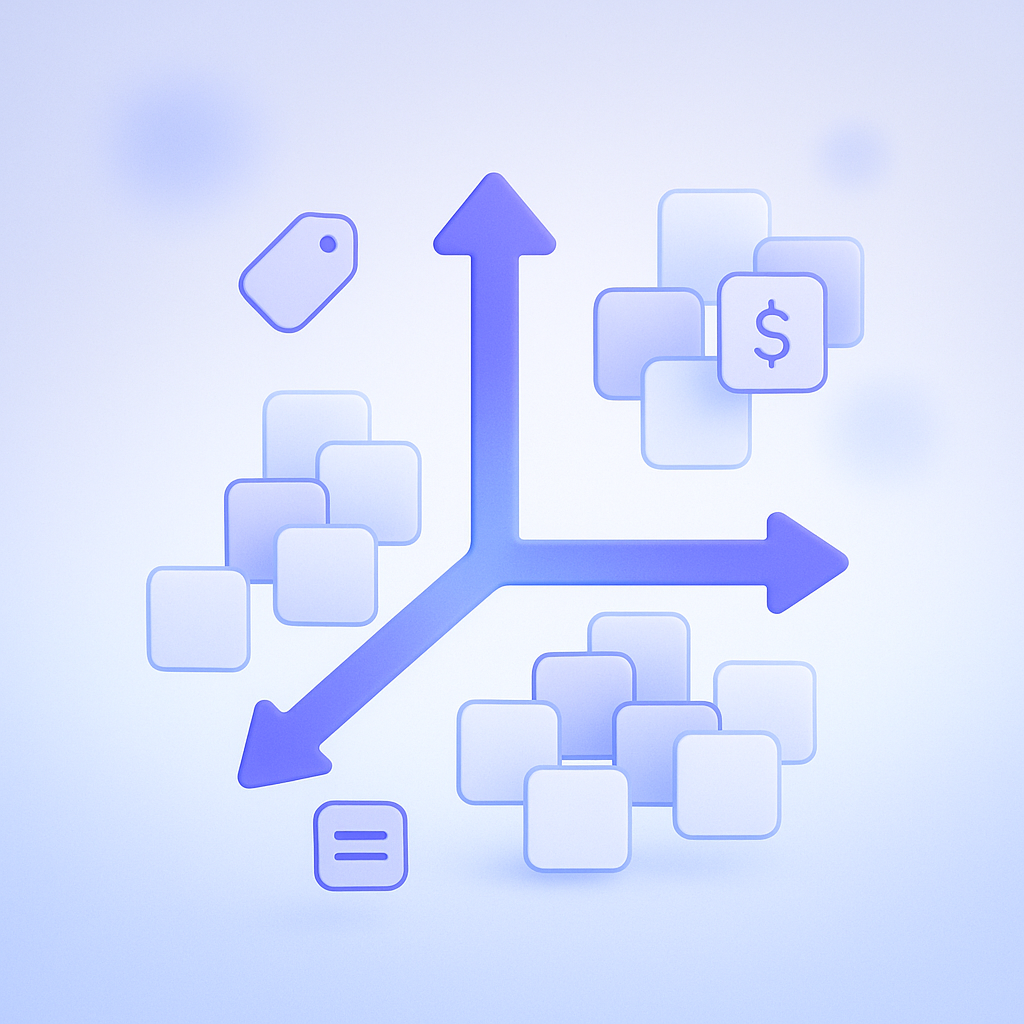
For automated collections, Shopify officially lets you use conditions such as product title, type, vendor, price, tag, weight, inventory, and compare at price. In day‑to‑day operations the most useful axes are product tags, price, and inventory status. Most stores can build nearly all of their collections from some combination of these three.
- Tags: use them as conditions to express category, use case, and target audience, for example tops, bottoms, kids, gift
- Price: use ranges for feature content (for example up to ¥3,000, or ¥3,000–¥5,000) and for sale price floors and ceilings
- Inventory: include conditions like inventory greater than 0 or inventory managed, and use them to push out or hide out‑of‑stock items
The key is to assign conditions not to attributes you can “see at a glance,” but to the axes you want the system to decide on automatically later. Color and size, for instance, are expressed as variants, but if you want a group like “all T‑shirts” or “all dresses,” product type or tags are a better fit.
You can also choose whether products must meet all conditions (AND) or any of them (OR). If you mistakenly design with OR, a collection intended to be “in stock and on sale” will end up including products that are simply “in stock” or “on sale,” which is a classic error. It is safer to write out on paper which conditions are AND and where you start widening with OR before you build the collection.
How tag design defines the “coverage” of automated collections

Tags are the linchpin of automated collection management. But if you let the number of tag variants grow unchecked, staff will forget to apply them, and similar tags (for example top, tops, トップス) will multiply and cause products to fall through your conditions.
A good approach is to split tags into layers by role. If you divide them into around three layers like the examples below, it becomes much easier to structure your automated collection conditions.
- Category tags: limited to broad classifications such as tops, bottoms, onepiece
- Use‑case tags: represent usage scenes such as office, outdoor, home
- Promotion tags: applied by period or campaign, such as sale-202405, new-arrival
A common failure case is letting promotion tags get too granular to manage. For example, if you create a new tag for every weekly newsletter campaign, you will add 50‑plus tags in a year and quickly lose track of which are still active and which are obsolete. It is important to keep campaign tags to a manageable number by grouping them by month or by major campaign.
To prevent missing tags, build operational rules alongside your schema: add the three items “category tag,” “use‑case tag,” and “promotion tag” to your product‑creation checklist, or fix responsibility for tagging to a specific person.
Building dynamic features based on inventory and sale information
The strength of automated collections is their ability to track changing information such as inventory and compare at price (sale price). In particular, when low‑stock or sold‑out items keep appearing at the top of listings, it tends to drag down conversion, so controlling this via conditions is effective.
If you set up automated collections like the examples below, you can drastically cut back on daily update work.
- “Restocked items”: tag contains restock and inventory quantity is greater than 0
- “All sale items”: compare at price is greater than current price and inventory quantity is greater than 0
- “Only a few left”: inventory quantity is at or below a certain threshold (for example 5 or fewer) and the product is available for sale
A frequent mistake is running the “sale venue” as a manual collection and then forgetting to add newly discounted products. If you define “on sale” as “compare at price higher than current price,” using that as an automated collection condition will reduce human error.
You can also consider not completely excluding out‑of‑stock products, but instead pushing them to the bottom of the listing. Shopify’s sort options include best selling, date created, and manual. With manual sorting you can fine‑tune the order of certain products, but this again creates ongoing maintenance work. A practical pattern is to separate in‑stock and out‑of‑stock items into different automated collections, and make only the in‑stock collections part of your main navigation.
When to use manual collections and what to watch out for
Even though automated collections should be your default, there are situations where manual collections are more suitable. Typical cases are brand‑driven needs such as “show a tightly curated lineup chosen by the brand” or “build highly editable feature pages that are deliberately hard to express as rules.”
However, for manual collections you must set operating rules on the assumption that nothing changes unless someone updates them. For example, if you create a seasonal feature as a manual collection, add checkpoints to your operations calendar like “finish product assignment one week before launch” and “at the end date, always unpublish or remove links.” This reduces oversights.
In real‑world workflows, a pragmatic approach is “start with manual, then switch to automated once you see the pattern.” If you notice that you keep picking products with the same tags or price bands, there is a good chance you can move those exact conditions into an automated collection.
One thing to avoid is running your main categories as manual collections. Collections linked from the top navigation tend to have the highest frequency of product additions and removals. If you manage these manually, staff workload and mistakes both increase. For safety, define main categories with automated collection conditions and reserve manual collections for campaign pages and one‑off exceptions.
How to leverage this with RecoBoost
RecoBoost can use your Shopify automated collections directly as the base for recommendation logic. If you properly define conditions for collections like “all sale items,” “restocked items,” and “category collections,” you can easily configure sections in your theme such as “popular items within this collection” or “related products within the same category.” First tidy up your Shopify automated collection design, then align RecoBoost widget placement and rules with that structure. This lets you run high‑precision recommendations without increasing manual update work.
To run Shopify collections smoothly, focus on three points: make automated collections the default, manage them dynamically with tag design plus inventory and price conditions, and use manual collections only to support highly editorial content. Once your condition design is solid, you can keep operations costs down even as SKUs grow, while maintaining a flexible product structure that integrates easily with recommendation apps like RecoBoost.