
Getting Started with Cross‑Border Ecommerce Using Shopify Markets
With Shopify Markets you can sell to multiple countries from a single store. This guide walks through choosing target countries, setting currency, language, tax, and shipping, plus common pitfalls, all at a level you can implement directly in the admin.
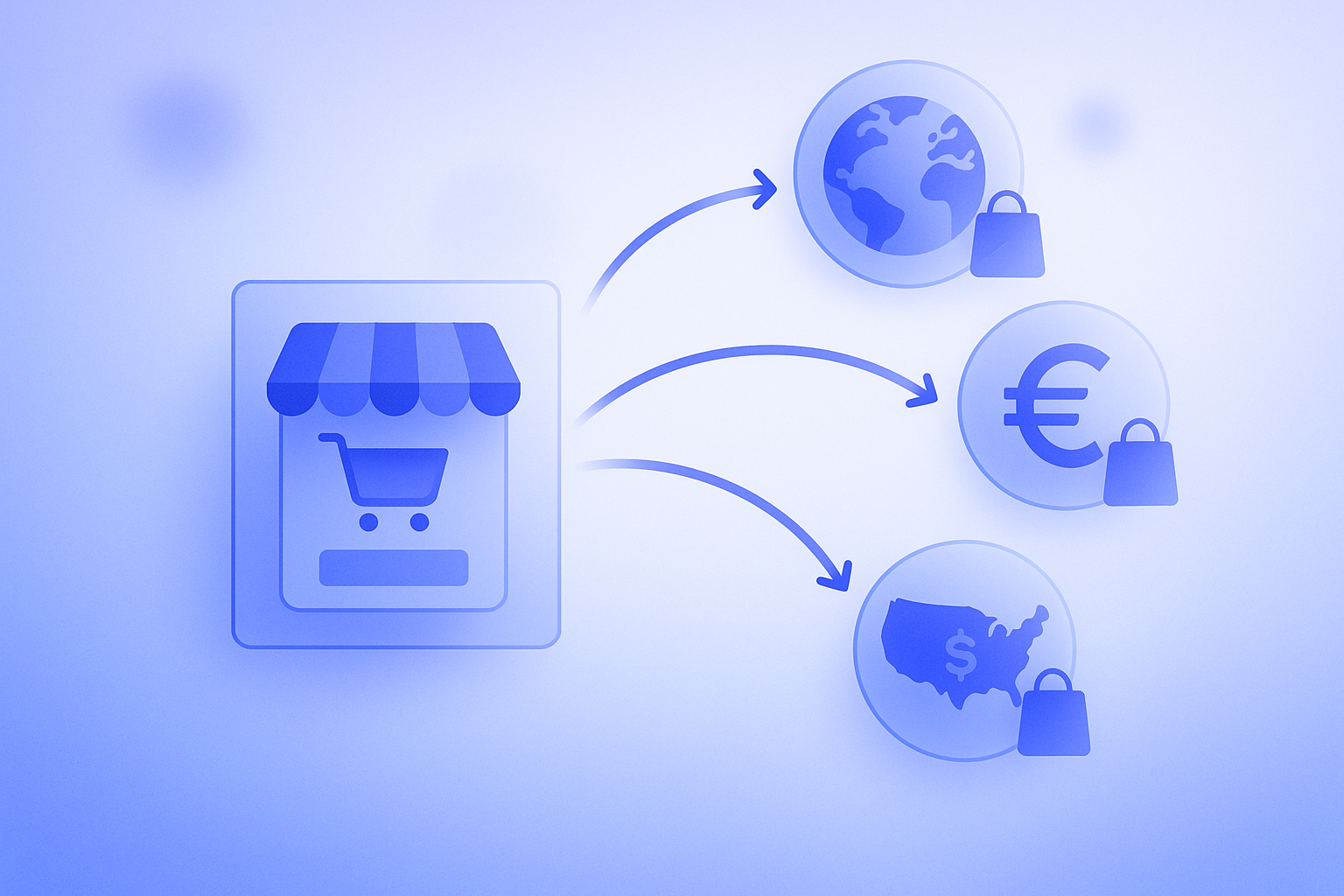
With Shopify Markets, you can sell to multiple countries and regions from a single store. Compared with spinning up separate country stores, it keeps operating costs lower and is well suited to starting small with cross‑border ecommerce and scaling up. This article uses Shopify Markets, the official Shopify feature, as the basis and organizes, from a practical operations point of view, the minimum settings and steps you need when you start selling overseas. In short, instead of opening up to the entire world from day one, the fastest way to launch cross‑border sales without trouble is to focus on one or two countries and lock down four elements in Markets for them: currency, language, tax, and shipping. The explanations here go into enough detail that you can picture the operations in the Shopify admin. Because Shopify’s specs and supported countries can change, always make final decisions based on the official documentation. Note: this article covers Shopify Markets, Shopify’s native multi‑market feature. It is different from third‑party services with similar names.
Clarifying what Shopify Markets can and cannot do
First, let us sort out what Shopify Markets can handle for you, and what will still require separate apps or external services. When you understand how far you can rely on Shopify’s native features, you are less likely to make structural mistakes. According to Shopify’s official documentation, Markets mainly has the following roles:
- Create “markets” for each country or region so you can group and manage target countries together
- Set the selling currency (for example USD, EUR, AUD) per market and switch the checkout currency accordingly
- Add languages per market and integrate with translation apps to localize product information and other content
- Switch how tax is displayed (tax‑inclusive or tax‑exclusive) and automatically calculate tax rates per country, where supported
- Separate shipping rate tables by shipping area and operate them in combination with shipping profiles
- Adjust prices per market, such as adding a percentage on top of the exchange rate
On the other hand, the following cannot be done using Shopify Markets alone:
- Translating the content itself, such as product text, which requires a dedicated translation app or external translation work
- Building logistics for shipping from local warehouses, which requires integration with fulfillment services or 3PL providers
- Creating terms of service and privacy policies that comply with laws and regulations in each country
- Local marketing, such as running ads and driving traffic via social media in each market
For example, a setup like “Sell in USD to the United States, automatically calculate tax under US rules, and show English product pages” can be achieved by combining Shopify Markets with a translation app and proper tax settings. In contrast, an initiative like “Set up a local warehouse in the United States and cut delivery time down to two days” sits outside Shopify Markets itself and requires separate logistics design.
Start by narrowing your target to one or two countries
You often see claims like “Ships worldwide” or “We serve 150 countries” in cross‑border ecommerce, but if you widen your target too much from the start, operations around FX, shipping costs, and returns are likely to break down. In practice, it is better to design Shopify Markets around just one or two countries for at least the first three to six months.
When narrowing down your target countries, starting from simple criteria like the following makes decisions easier:
- Is the lead time realistic from your shipping origin? For example, Japan to the US might be 7–14 days, while Japan to East Asia might be 3–7 days
- Are there already orders or inquiries coming from particular countries or regions
- Does the market size and average order value look like a good fit for your products? For example, high‑ticket but lightweight products often work well in the US and Europe
- Can you provide customer support in the local language, such as being able to handle inquiries in English
A common failure pattern is to loosely decide on something like “Flat 2,000 JPY shipping, we ship worldwide,” only to find that shipping to distant countries actually costs 4,000–5,000 JPY and puts you in the red. Because Shopify Markets lets you separate markets by country, it is safer to intentionally design things so that you first set up one or two countries with predictable shipping costs and lead times as your “main markets,” and then gradually open up other countries later on.
Basic Shopify Markets setup steps (countries, currency, language)
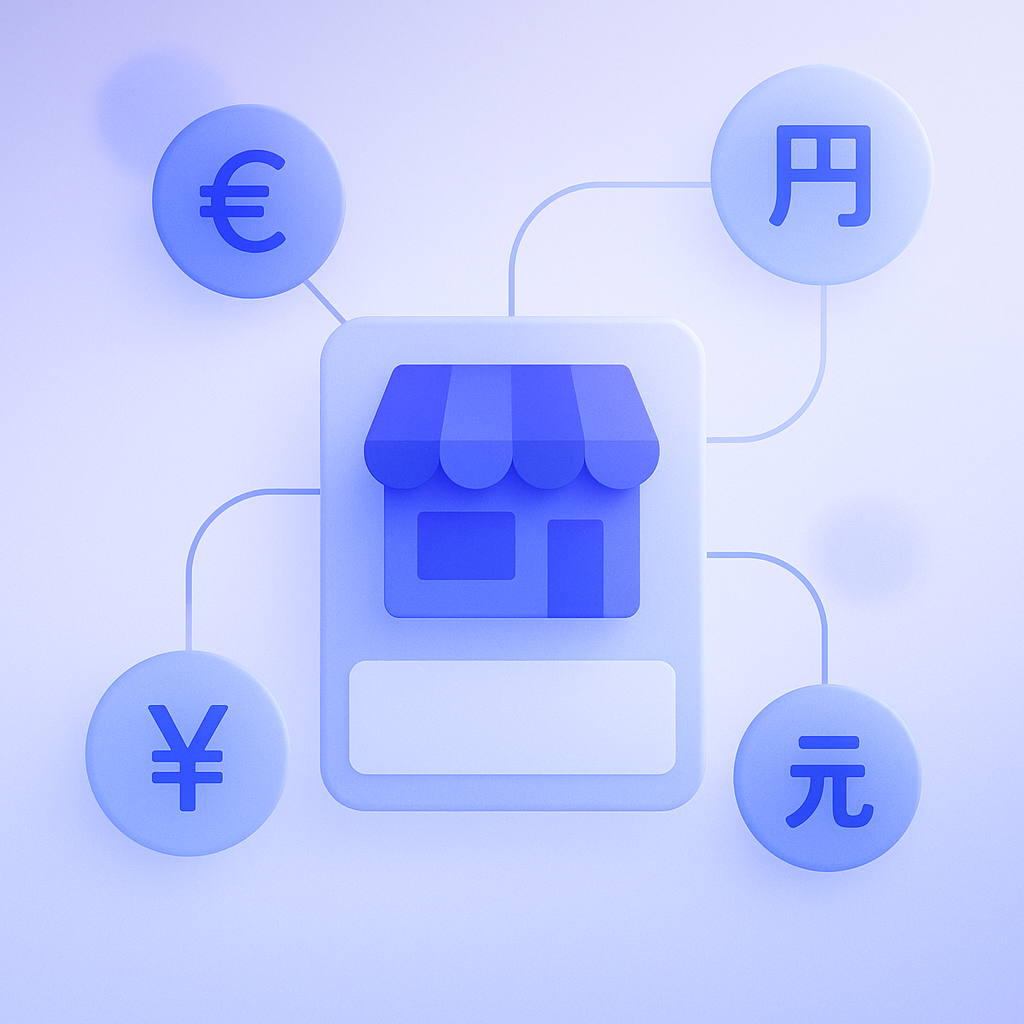
Once you have chosen your target countries, configure Shopify Markets from the Shopify admin. Below is the typical sequence of steps. The actual labels and menu names may vary by plan and timing, so check your Shopify admin and the official documentation for specifics.
- In the Shopify admin, go to Settings and then Markets
- Click Add market and select the new target countries or regions to create a market
- Check and set the selling currency per market and, if needed, make sure multi‑currency support is enabled
- Add languages associated with each market, for example adding English to a Japanese‑language store
Shopify itself supports multiple languages and can show a storefront per added language. However, product titles and descriptions, collection descriptions, and other text still need to be translated using a translation app or manual entry. If you add languages without actually translating the content, you will end up with pages that are hard for users to read, so be careful.
In the currency settings, you define which currency each market will use at checkout. A common configuration is USD for the US market, EUR for European markets, and JPY for Japan. By using payment methods that support multiple currencies, such as Shopify Payments, customers can pay in their local currency and the appropriate rate is automatically applied as exchange rates move. On the other hand, if you rely purely on exchange rates, prices often end up with awkward decimals, so you should also look at the price adjustment features described later.
How to think about tax, duties, and price adjustments
In cross‑border ecommerce, getting tax and duties wrong quickly leads to complaints. For supported countries and regions, Shopify Markets can automatically calculate taxes and control how prices are displayed with or without tax. Duties and import fees, however, vary by carrier and your choice of Incoterms, such as DDU or DAP, so you cannot fully control them from the Shopify side alone.
In day‑to‑day operations, you can reduce trouble if you at least cover the following three points:
- Check whether each target country supports Shopify’s automatic tax calculation and upfront tax display
- Decide per market whether you will use tax‑exclusive or tax‑inclusive pricing
- Clearly state on product pages and in your FAQ whether duties and import fees are borne by the customer
Price adjustments that account for exchange rates and shipping costs are also important. In Shopify Markets, you can set percentage markups or discounts against your base prices for each market. For example, if international shipping and payment fees are higher, you might add a flat 10 percent markup to all overseas markets.
A common mistake is to “leave everything to automatic FX conversion,” which can mean you are profitable at one point in time but, after a 10–20 percent currency move, you unknowingly end up selling at a loss. This is especially risky for products with high cost ratios or products where overseas shipping costs several thousand yen per order. To protect your margins, always review your per‑market price adjustment rules.
Design shipping zones and rates to match your markets

Shopify Markets decides “which countries you sell to,” but “how far you ship and at what price” is controlled in your shipping settings, namely shipping profiles and shipping zones. When you start cross‑border ecommerce, you need to review Markets and shipping settings together.
For example, even if you currently charge a flat 500 JPY shipping fee within Japan, that rate is rarely viable for destinations like the US or Europe. Check the carrier’s international rate tables and get a sense of benchmarks, such as “Shipping up to 1 kg to North America costs around 2,000–3,000 JPY,” then split your shipping rate tables by shipping zone in Shopify accordingly.
- From Settings, go to Shipping and delivery and create a new shipping zone for overseas orders
- Specify the target countries so that they line up with the markets you created in Shopify Markets
- Set shipping rules that match your sales patterns, such as weight‑based or price‑based rates
- If you want a free‑shipping threshold, for example free shipping over 100 dollars, run the numbers and balance it against your profit margins
A failure pattern here is lumping every country into a single Overseas zone and taking heavy losses on shipping to distant destinations. If you separate shipping zones by major regions such as Asia, North America, and Europe and align them with your Markets configuration, both operations and analysis become much simpler.
Five things you must test before going live
Once you have finished your basic Shopify Markets configuration, run test orders and check the screens before going live to confirm things behave as expected. If you narrow the checks down to five minimum items, they look like this:
- Change your IP or browser language and check that the correct market is selected when accessing from each target country
- Confirm that the currency on product pages, in the cart, and at checkout is as intended, for example that prices display and can be paid in USD
- Check that translated text is correctly reflected and that there is no leftover Japanese mixed into localized pages
- Verify that tax and shipping are calculated as expected by placing test orders and checking the final total
- Confirm that post‑purchase email notifications and status messages are readable and make sense in the target language
Ideally, you should complete at least one full test transaction, including payment, in each market. In particular, how credit card payments and local currency display behave is not always obvious from admin previews alone. When you find issues in your initial tests, keep them in a checklist so you can reuse it whenever you add new markets later and make the process more efficient.
How to leverage RecoBoost for cross‑border recommendation merchandising
After you start cross‑border ecommerce with Shopify Markets, bestsellers and frequently bought together items will differ by country and language. By using a recommendation app like RecoBoost alongside Markets, you can automatically show optimized recommended products by country and language, based on per‑market sales data. For example, items that are rarely bought as a bundle in Japan might form combinations in overseas markets that lift the average items per order by 1.4 times. As you organize countries, currencies, and languages in Shopify Markets, running market‑specific recommendations in RecoBoost makes it much easier to continually improve average order value and assortment in your cross‑border business.
To wrap up, successful cross‑border ecommerce with Shopify Markets comes down to three careful steps: first, narrow your target to one or two countries; second, design currency, language, tax, and shipping per market; third, use test orders to confirm actual behavior. Once those are in place, you can steadily expand your overseas sales by adding more markets. Always keep an eye on Shopify’s latest specs and supported countries in the official documentation and design your cross‑border operations so they fit your own profit structure.