
Making Sense of Theme App Extensions and App Embeds in Real Operations
Theme App Extensions and App Embeds both add app features into your theme, but what they can do and where you manage them differ. This article clarifies the differences and when to use which, focusing on points Shopify operators often struggle with in day‑to‑day work.
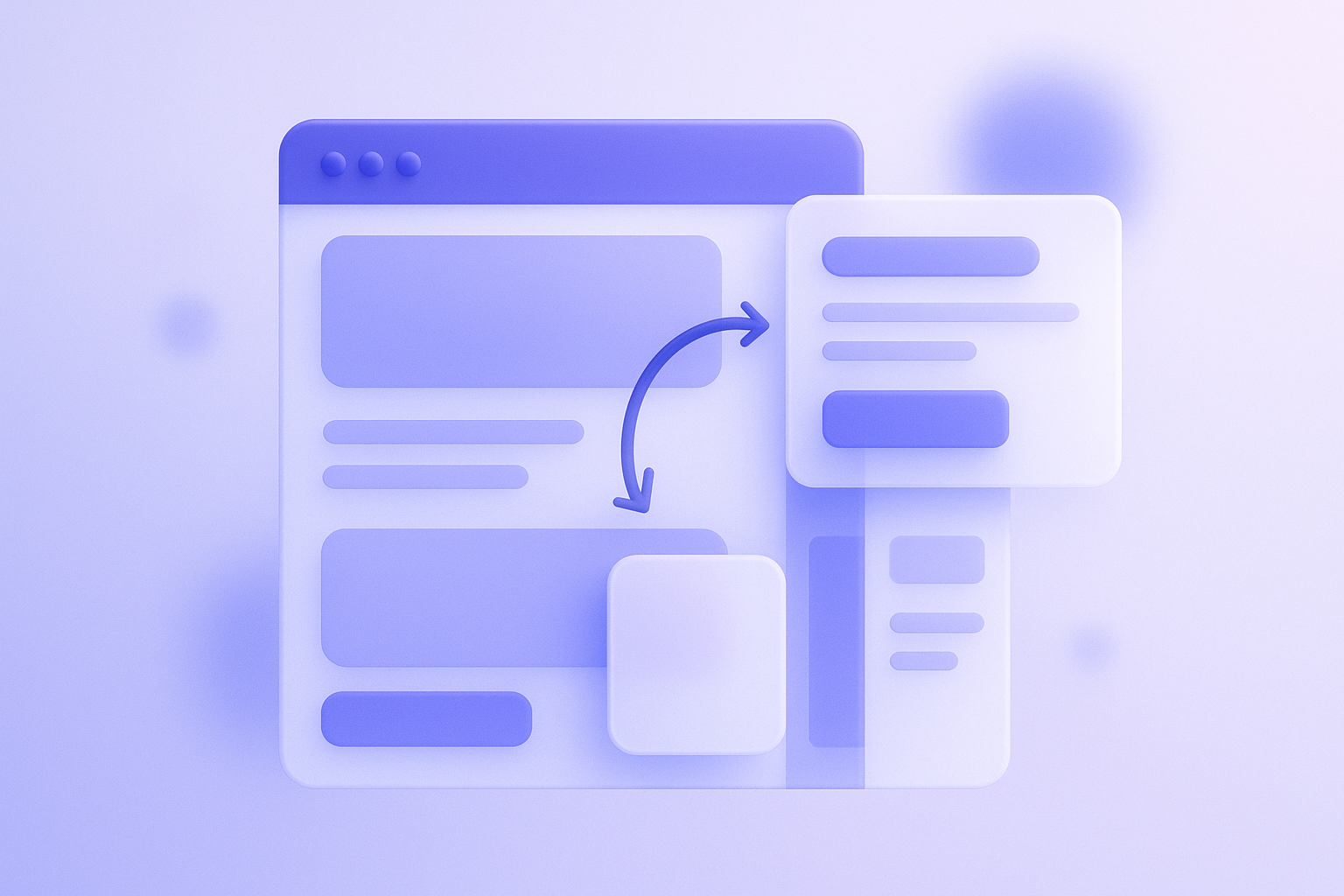
To put it bluntly, Theme App Extensions are the overall mechanism that lets an app add components into a theme. Within that, there are pieces you place as sections and pieces you embed as App Embeds. App Embeds in particular are like on or off switches for features that apply across the whole site rather than a specific spot on a page, such as badges or tracking. In day-to-day operations, if you keep track of where you turn things on and whether they carry over when you change themes, it becomes much easier to avoid confusion.
Here we will organize the differences between Theme App Extensions and App Embeds around what you actually see in the admin, how you set them up, how they behave when you change themes, and where people commonly get stuck, so that even non-technical operators can make decisions.
Basic overview of Theme App Extensions and App Embeds
A Theme App Extension is the general mechanism that lets an app add functionality into a theme. In Shopify’s official documentation, Theme App Extensions are described as the way apps integrate with themes. The key point is that blocks, sections, and embed features prepared on the app side can be added and configured from the theme editor Online Store > Themes > Customize.
App Embeds, on the other hand, are often provided as one feature within a Theme App Extension, and are toggled on and off in the App embeds tab in the theme editor. They are frequently used for features that do not sit as a section in a particular spot, such as scripts, banners, or badges that affect the page as a whole.
From an operator’s perspective, it is easier to think of it this way: first check whether an app supports Theme App Extensions, because that determines how smoothly it integrates with your theme. Within that, you then decide whether you will place it as a section or flip it on as an App Embed.
Where they appear in the admin and where you operate them
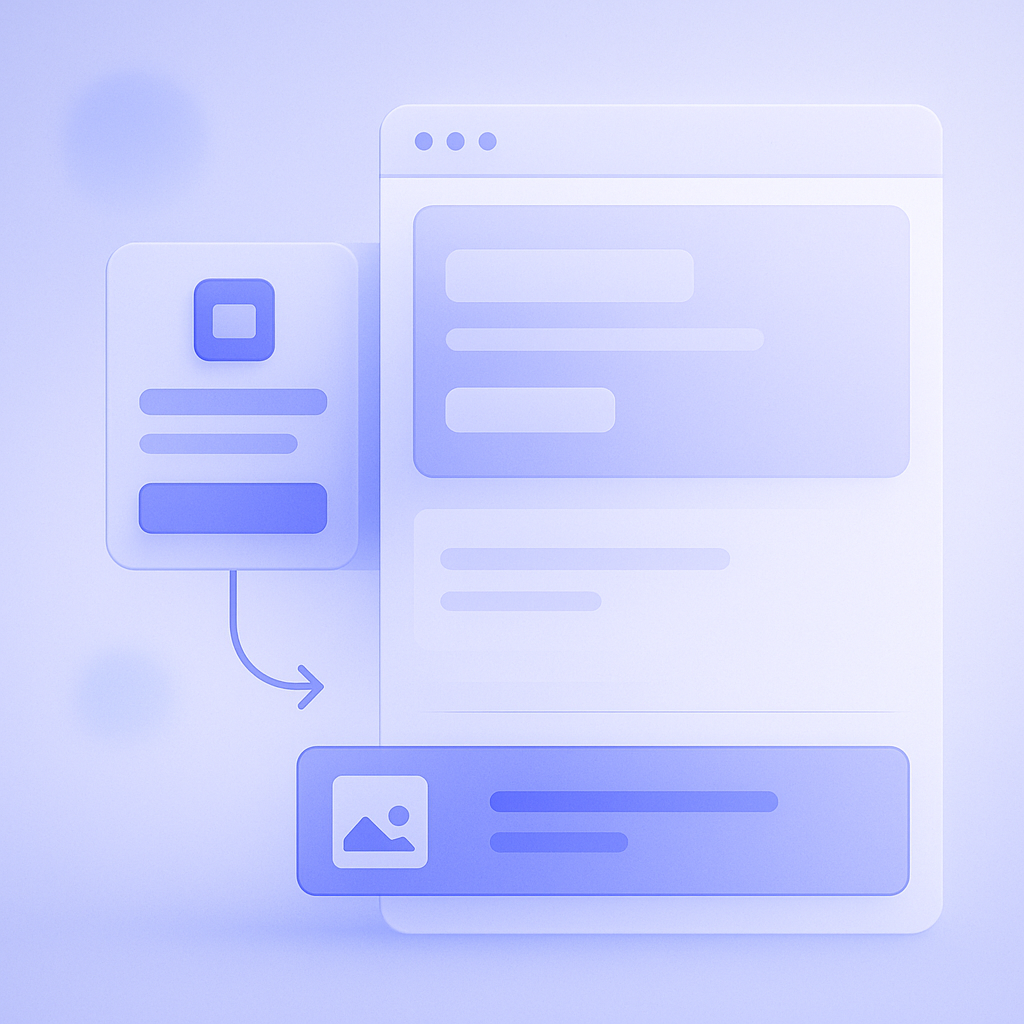
When you install an app that supports Theme App Extensions, the theme editor’s left-hand structure gains app-specific sections or blocks you can choose from. For example, with an app that shows recommended products on the product page, you can often add it as a section that appears below the product information and move or reorder it by drag and drop just like any other section.
By contrast, App Embeds are not managed in the section list on the left side of the theme editor. Instead, they live under the App embeds area in the top or left menu. That area lists embed features provided by installed apps, and the main actions are turning a toggle switch on or off and opening detailed settings from the gear icon.
- Section type one kind of Theme App Extension: can be added and reordered as a block in a specific position on product pages, the home page, and other templates.
- App Embed type another form within a Theme App Extension: turned on and off as a switch that embeds functionality across the theme as a whole.
A common onboarding issue is people saying they installed an app but nothing shows on the storefront. In 80–90% of cases this is simply because they forgot to add the section or turn on the App Embed in the theme editor. To avoid this, build a step into your workflow: whenever you install an app, always open the theme editor and enable either the section or the App Embed.
What to watch when changing or duplicating themes
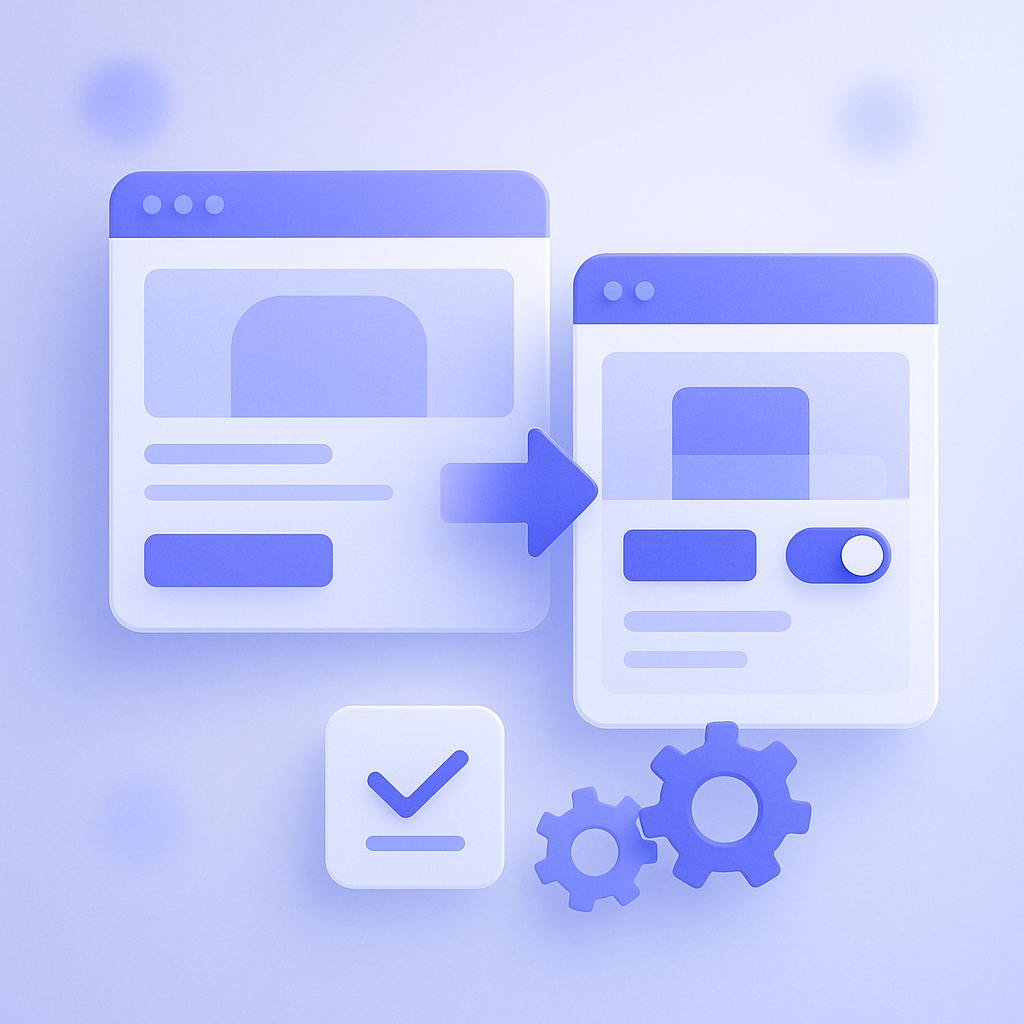
Apps that support Theme App Extensions are basically designed to be reusable even if you change themes. By Shopify’s official specification, Theme App Extensions are provided as app functionality independent of any particular theme. As long as the theme supports them, you can add sections and toggle App Embeds in the same way.
That said, you do need to be careful when you switch from your live theme to a new one or duplicate a theme for testing. When you open the theme editor for the new theme, the app sections and App Embed settings may be in their initial state. In other words, App Embeds that were turned on in the old theme might be turned off in the new one.
In practice, it is safer to build the following checklist into your process before you switch themes.
- Open the new theme in the theme editor and check the App embeds area to confirm that all required App Embeds are turned on.
- On product and collection pages, confirm that the app-provided sections are placed in the intended positions.
- Use test orders or previews to check one or two scenarios and make sure the app behaves as expected.
Tracking and tag-insertion App Embeds in particular will not break your layout if you forget to turn them on. This means it is easy to end up with tracking quietly stopped on the ad side and only notice it weeks later. When you run your theme-switch checks, you need to consciously include App Embeds that do not affect visual appearance.
Which features suit App Embeds and which suit sections
Within a Theme App Extension, whether a feature is exposed as an App Embed or as a section is up to the app’s design. However, there are some general patterns that are useful for operators to understand about what suits which.
App Embeds are a good fit for behavior that is common across pages or elements that do not need to appear as a clearly visible part to users. Examples include showing stock badges across the site, a small chat widget that always appears at the bottom of the page, and inserting measurement tags or tracking scripts. Once turned on, they apply to all pages, and you do not need to fine-tune layout per page.
Sections, on the other hand, suit features you want to control precisely as this content, in this position, on this page. For example, showing recommended products between the description and reviews on the product page, or showing a featured collection midway down the home page. In this case you add the app section from the section list in the theme editor and adjust its position just like any other section.
As an operational rule of thumb, treat settings you want to apply uniformly across multiple pages as App Embeds, and displays you want to vary by page or by position as sections. This makes it clearer what to adjust when you need to change something.
A no-code checklist for narrowing down issues
If an app is not displaying as expected and you send it straight to your developer, even a simple missing setting can take days to resolve. Once you understand how Theme App Extensions and App Embeds work, there are quite a few issues you can narrow down yourself without writing code.
Here is a set of checks you can easily run on-site, all within a no-code range.
- Open the theme editor and check whether you can add the app section verify that the relevant section appears in the list.
- Open the App embeds list and check whether the switches for the relevant app are turned on.
- Compare the App Embed settings between the live theme and any unpublished themes to see if they match.
- Temporarily copy the settings to another theme such as a default official theme and test whether the app works correctly there.
With just these four steps you can usually narrow down whether the cause is theme customization, App Embed toggles, or the app itself. When you do contact a development partner, adding information such as App Embed is on and the same issue appears in another theme will typically speed up root-cause analysis.
How this works with RecoBoost
RecoBoost also supports Theme App Extensions. You can use both patterns: adding recommendation sections to product and cart pages, and toggling site-wide settings on and off via an App Embed. In practice, you first place the recommendation section for product pages from the theme editor, then use the App Embed switches to control whether it is active on all pages or only specific templates. This lets you improve the theme without disrupting your operational flow, even when you change themes.
If you think of Theme App Extensions as the overall mechanism for adding app features to your theme, and App Embeds as the on or off switch for embedded functionality that applies across the theme, you can reduce issues when changing themes or adding new apps. As a first step, it helps to inventory which of your current apps are section-based and which are App Embed-based; that will directly support risk management for your next theme update.